
Location permissions have quietly become one of the most powerful levers in a smartphone’s privacy settings. Changing every app from “always” to “while using” cuts off a constant stream of background location data that can be harvested, shared, and monetized without the user ever opening the app. For most people, that single adjustment sharply limits how often their movements are logged while keeping core features like navigation and ride-hailing intact.
How location tracking works behind the scenes
Modern phones combine GPS, Wi-Fi networks, Bluetooth beacons, and cell towers to pinpoint where a device is at any moment. Even when a virtual private network is active, the operating system and apps can still access the GPS chip and nearby wireless signals, which means a phone can be tracked by its location sensors rather than its IP address. VPNs hide traffic routes, not physical coordinates.
On both iOS and Android, each app requests a level of access that typically falls into three buckets: never, while using, or always. “While using” restricts access to the moments when the app is open on the screen or running an obvious foreground task such as navigation. “Always” grants permission even when the app appears idle, allowing it to wake up in the background, ping the location system, and send that data to remote servers.
Developers rely on this stream for legitimate features like geotagged weather alerts, automatic check-ins, or background fitness tracking. At the same time, many advertising and analytics software kits encourage apps to collect as much location data as possible, then stitch it together into detailed movement profiles. Those profiles can reveal home and work addresses, daily routines, and visits to sensitive places such as medical clinics or religious centers.
What has changed in how apps use “always” location access
In recent years, both Apple and Google have reworked their permission prompts to make background access harder to obtain and easier to revoke. On recent versions of iOS, apps that request “always” access often must first operate with “while using” permission, then display an additional prompt that explains why they want continuous tracking. Android has followed a similar path, splitting foreground and background location into distinct choices so users can approve one without the other.
Despite those changes, many apps still push for the broadest access they can get. Some navigation, delivery, and social apps present “allow all the time” as the default or most convenient option, even when their core features would work with more limited access. Others lean on vague language about an “improved experience” or “relevant content” that obscures how often the app will actually query the device’s location in the background.
Security guidance now encourages users to periodically audit these permissions and downgrade any app that does not clearly need continuous tracking. On Android, that means opening Settings, then Location, then App location permissions to see which apps have “allowed all the time” and switching them to “allow only while using the app.” On iPhones, users can open Settings, then Privacy & Security, then Location Services, tap each app, and change “Always” to “While Using the App” or “Ask Next Time.”
Mobile privacy experts generally stress that only a small set of apps truly require ongoing access. A maps app that provides turn-by-turn navigation, a trusted fitness tracker that logs runs, or a family safety tool that shares live locations may justify background tracking. Many others, such as shopping, news, photo editing, and casual games, do not need to know where the user is after the app is closed.
Why tightening background location matters right now
Location data has become a lucrative category of personal information, traded between app developers, data brokers, advertisers, and sometimes government agencies. Even when data is described as “anonymous,” repeated pings from the same device can be correlated with specific addresses and routines until the person behind the phone is easy to identify. That risk grows as more apps quietly collect coordinates in the background.
Guides on stopping background tracking explain that apps with “always” permission can request location at any time, even if the user has not interacted with the app for days. On Android, users can limit this by switching those apps to “allow only while using the app,” which prevents them from polling the GPS chip when they are not visible on screen. On iOS, changing an app from “Always” to “While Using the App” or “Never” similarly blocks silent tracking and reduces how often the system logs precise coordinates in association with that app.
One walkthrough of privacy settings highlights how many common apps, including social networks and shopping platforms, still default to background access and must be manually restricted to stop location collection in the background. That guidance recommends reviewing every entry under Location Services and downgrading permissions so that apps only see location when they are actively in use, sharply cutting down on unnecessary tracking in the background.
Location data can also leak through channels that users do not always expect. Even with a VPN enabled, cellular networks know which tower a device is using, and apps can read GPS coordinates directly. As a result, switching every app to “while using” is one of the few tools that directly reduces how often third parties can log where a device is, regardless of how network traffic is routed.
There are also security implications. Continuous location logs can reveal when a person is away from home, how often they visit a particular office, or when they travel on predictable routes. If that data is exposed in a breach or shared more widely than intended, it can be misused for stalking, targeted scams, or physical surveillance. Limiting apps to foreground access narrows the window during which those logs can be created.
Practical steps to reset every app to “while using”
For most users, the safest baseline is to treat “while using” as the default for every app, then grant “always” only to a short list of tools that clearly need it. The process takes a few minutes but does not require any technical expertise.
On Android, users can open Settings, tap Location, then App location permissions. From there, they can scan the list of apps labeled “Allowed all the time,” tap each one, and change the setting to “Allow only while using the app.” A weather app that previously checked location around the clock, for example, will now only see it when the user opens the forecast. Ride-hailing apps like Uber or Lyft can still function correctly with “while using” access, since they only need location during an active ride request.
On iOS, the equivalent path is Settings, then Privacy & Security, then Location Services. Each app is listed with its current permission. Tapping an app reveals options such as “Never,” “Ask Next Time Or When I Share,” “While Using the App,” and sometimes “Always.” Users can move nearly everything to “While Using the App,” then reserve “Always” for specific cases like trusted fitness trackers or automation tools that genuinely rely on constant location.
Guidance on how to stop apps from in the background suggests combining this permission reset with a few extra safeguards. Those include disabling location access for system services that are not needed, such as frequent location-based suggestions, and turning off location history features that store a timeline of visited places. Users are also encouraged to periodically revisit these menus, since app updates can introduce new permission prompts that attempt to re-expand access.
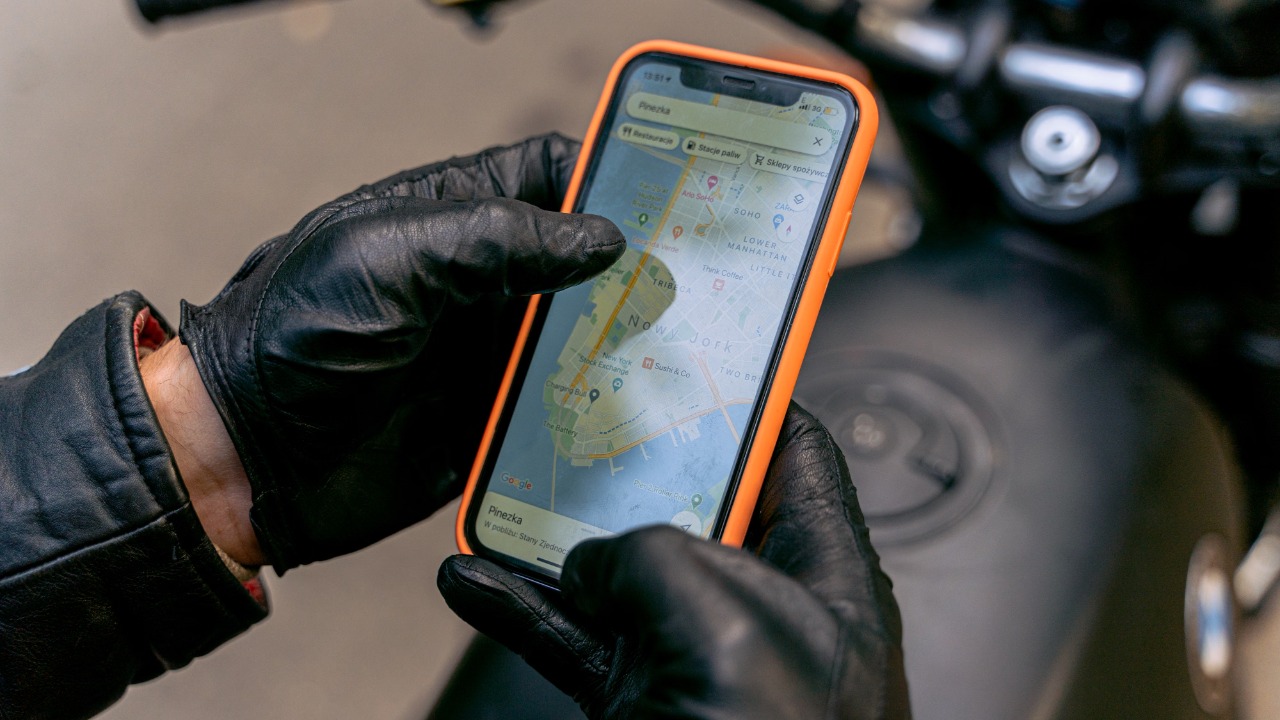
Real-world examples show how quickly these changes can reduce background tracking. A person who uses Google Maps for navigation, Instagram for social media, and a local weather app might find that all three had “always” access by default. After switching them to “while using,” location requests drop to the moments when navigation is running, the feed is open, or the forecast is being checked. The rest of the day, the phone’s location remains largely invisible to those apps.