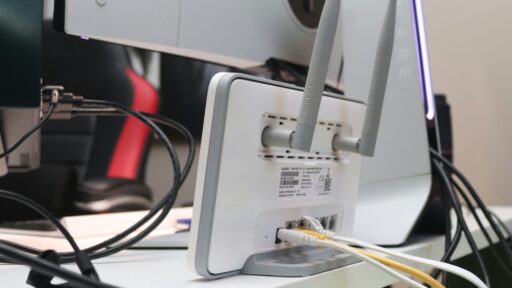
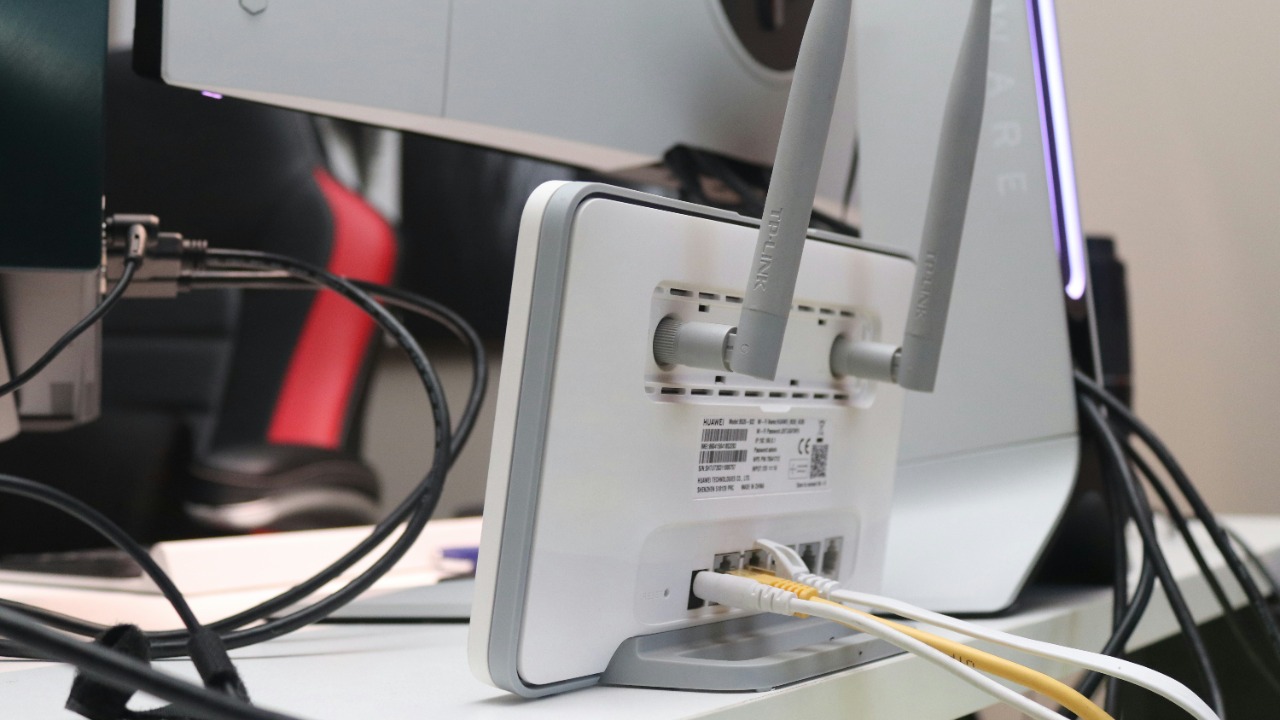

A home router is one of those devices people expect to work forever without attention.
It gets plugged in once.
The Wi-Fi name is configured.
Phones, televisions, laptops, smart speakers and security cameras connect.
Then the router may sit on a shelf for months—or even years—without being touched.
Modern routers are designed to run continuously, so there is nothing inherently wrong with leaving one powered on for long periods. But routers are also small computers. They run an operating system, manage memory, maintain network connections and handle dozens of background processes.
Over enough time, software problems can accumulate.
That does not mean everyone needs to reboot a router every night. In fact, excessive restarting can be unnecessary and disruptive.
But if a router is never restarted, several annoying problems can eventually appear.
Your Router Can Slowly Run Out of Available Memory
Routers contain RAM just like computers.
Every connected device, network process and background service uses some of that memory.
Ideally, the router’s software releases memory when it is no longer needed.
Software is not always perfect.
A bug can cause memory to remain allocated even after a process is finished. These are commonly called memory leaks.
Over weeks or months, small leaks can accumulate until less working memory remains available.
The router may not completely crash.
Instead, it may simply begin feeling worse.
Websites take longer to load.
Wi-Fi devices take longer to connect.
The administrative interface becomes sluggish.
Streaming begins buffering unexpectedly.
ASUS specifically notes that restarting a router can release space in RAM and improve system performance while leaving saved settings intact.
That is one reason a reboot can occasionally appear to “magically” make slow Wi-Fi faster.
The internet connection itself may not have changed.
The small computer managing it simply started fresh.
Temporary Software Bugs Can Accumulate
Imagine leaving a laptop running for six months without restarting it.
It might work perfectly.
Or one application may gradually begin behaving strangely.
A router faces the same basic problem.
Its firmware manages DHCP addresses, firewall rules, Wi-Fi clients, routing tables, DNS forwarding, VPN features, parental controls and potentially dozens of other services.
One of those processes can get stuck.
Restarting clears active processes and reloads the router’s operating environment. Cisco’s router documentation specifically recommends considering a restart if a router freezes or stops functioning properly, noting that a restart clears running processes without deleting saved settings.
That is different from a factory reset.
A reboot simply restarts the device.
A factory reset wipes configuration and usually requires setting the router up again.
Knowing that distinction can prevent an unnecessarily painful afternoon.
Some Devices May Start Having Connection Problems
Routers constantly keep track of connected devices.
A busy household can contain far more than people realize.
Two phones per person.
Tablets.
Laptops.
Smart televisions.
Streaming boxes.
Game consoles.
Smart bulbs.
Doorbells.
Security cameras.
Printers.
Thermostats.
Voice assistants.
Robot vacuums.
Every one of those devices can create connections, request addresses and communicate with internet services.
Occasionally, something inside that network state becomes confused.
A particular phone may refuse to connect while every other device works.
A smart TV may claim there is “no internet.”
A laptop connects to Wi-Fi but cannot load websites.
Restarting the router forces network services to initialize again and devices to reconnect.
That often clears temporary connection problems without requiring anyone to determine exactly which obscure network table became confused.
Your Internet Connection Could Appear Slower
Restarting a router does not increase the speed purchased from an internet provider.
A 100 Mbps connection does not become 500 Mbps because someone unplugged a box.
But router instability can prevent the network from delivering the speed it should.
Imagine a router with low available memory, a stuck process or excessive accumulated connections.
The internet service arriving from the ISP may be perfectly healthy.
The bottleneck is inside the home.
Restarting can remove that temporary bottleneck.
This is why internet providers frequently begin troubleshooting with:
“Please restart your modem and router.”
It sounds simplistic.
But it eliminates a surprising number of temporary software issues before technicians begin investigating larger problems.
Firmware Updates May Not Fully Apply Until a Restart
Router manufacturers regularly publish firmware updates.
Those updates can fix security vulnerabilities, improve stability, add features or correct bugs.
Some modern routers install updates automatically.
And the router may restart as part of that process.
TP-Link’s firmware documentation, for example, states that its routers reboot automatically after a firmware upgrade completes.
ASUS similarly notes that automatic firmware upgrades can cause routers to restart.
That means someone who believes his router has literally never restarted may actually be mistaken.
Modern equipment can perform automated maintenance overnight.
However, older routers that require manual updates can remain on outdated firmware indefinitely unless the owner checks.
That is a bigger concern than whether someone follows an arbitrary weekly reboot schedule.
Never Restarting Can Hide a Larger Hardware Problem
Suppose a router becomes slower every few weeks.
Restart it and everything returns to normal.
Then the problem returns.
Restart it again.
That pattern can continue for months.
At that point, rebooting is no longer solving the actual problem.
It is hiding it.
The router may have outdated firmware.
Its power adapter could be failing.
It could be overheating.
Its hardware may simply be aging.
TP-Link lists overheating, unstable power, outdated firmware and incorrect settings among common causes of router instability and repeated restarts.
This is important because people sometimes treat rebooting as permanent maintenance when it is really temporary troubleshooting.
A healthy modern router should generally be able to operate continuously without requiring constant manual intervention.
If someone needs to reboot every two days to keep Wi-Fi usable, something is wrong.
Heat Can Make Everything Worse
Routers generate heat.
They contain processors, radios and power-management components that may operate around the clock.
Put the router inside a closed cabinet, underneath other electronics or beside a heat source, and internal temperature can increase.
Heat does not necessarily mean the router immediately shuts down.
It can contribute to instability and potentially shorten component lifespan over time.
TP-Link specifically recommends putting routers in well-ventilated locations when troubleshooting instability.
So if someone repeatedly restarts a router because it becomes unreliable every evening, ventilation is worth checking.
Rebooting cools the device temporarily.
Moving it somewhere with proper airflow addresses the underlying problem.
A Restart Can Help With Network Address Problems
Home routers usually operate a DHCP server.
DHCP assigns local IP addresses to devices such as:
192.168.1.10
192.168.1.11
192.168.1.12
These addresses allow devices to communicate properly on the local network.
Normally, DHCP manages this process automatically.
But temporary lease or configuration issues can occasionally result in devices failing to communicate correctly.
Restarting the router and reconnecting devices can refresh this state.
The same principle can apply to DNS-related problems.
A router may act as an intermediary between household devices and external DNS servers.
If something in that chain becomes stuck or misconfigured, a reboot can sometimes restore normal behavior.
Again, this does not mean router tables need routine weekly cleaning.
It means restarting provides a convenient way to clear temporary network state when troubleshooting.
Rebooting Won’t Fix Weak Wi-Fi Coverage
This distinction is important.
If the bedroom has poor Wi-Fi because three concrete walls stand between it and the router, restarting will not change physics.
The signal may briefly seem better because devices reconnect under different conditions, but the fundamental coverage problem remains.
Likewise, restarting will not permanently solve interference caused by:
Nearby Wi-Fi networks.
Poor router placement.
Distance.
Metal structures.
Old client hardware.
An overloaded Wi-Fi channel.
Those problems require configuration changes, repositioning equipment, adding access points or upgrading hardware.
A reboot is powerful for software problems.
It is not a cure for bad radio conditions.
Should You Restart a Router Every Week?
Not necessarily.
There is no universal rule that every router needs a weekly reboot.
A well-designed router running stable firmware may remain online for months without any noticeable performance decline.
Some routers even include scheduled reboot functions, but those features do not prove that routine restarting is required.
ASUS and TP-Link both provide scheduled or automatic restart functionality on certain devices.
Someone could schedule a restart once every week or month if a particular router benefits from it.
But doing that automatically can mask persistent problems.
If a router runs perfectly, there is little reason to restart it simply because Sunday arrived.
A better rule is:
Restart when there is a reason.
Slow performance.
Connection failures.
An update.
A frozen administration interface.
Unexpected network behavior.
Those are meaningful triggers.
How Long Should You Leave It Unplugged?
For an ordinary reboot, the process does not need to become complicated.
The router can be restarted from its mobile application or administrative interface if that option is available.
Alternatively, switch it off or disconnect power briefly, then reconnect it.
ASUS says users can unplug and reconnect the power cable and then allow several minutes for the router to complete its startup process.
If the home has a separate modem and router, restarting them in sequence can also help during internet troubleshooting.
The ISP may provide device-specific instructions.
What should not happen is unplugging the router while firmware is actively being installed.
TP-Link specifically warns against powering off a router during a firmware upgrade because interrupting the process can damage the device.
That is one situation where restarting at the wrong time can make things much worse.
Restarting and Factory Resetting Are Completely Different
This mistake deserves repeating.
A reboot is safe routine troubleshooting.
A factory reset is destructive.
Factory resetting typically removes:
Wi-Fi network names.
Passwords.
Parental-control settings.
Port forwarding.
Custom DNS.
VPN configuration.
Other personalized settings.
Afterward, the router may behave like it just came out of the box.
Cisco’s documentation makes the distinction clear: restarting clears active processes, while returning the device to factory defaults erases configuration.
So if someone says, “Try resetting the router,” clarify what they mean.
In everyday conversation, people frequently use “reset” when they really mean “restart.”
Those two words can result in very different evenings.
Sometimes the Best Restart Is Replacing the Router
Networking hardware ages.
Standards improve.
Security expectations change.
Households connect more devices.
An old router designed for six laptops and phones may struggle in a home containing 40 connected devices.
If the router requires increasingly frequent restarts despite updated firmware, good ventilation and a healthy power supply, replacement may be a better solution.
The same applies if the manufacturer no longer provides security updates.
Restarting outdated hardware does not make its firmware secure.
That is why checking the manufacturer’s support page can be more important than establishing a reboot routine.
So What Happens If You Never Restart It?
Possibly nothing.
A good router can run continuously for a very long time.
But over extended periods, temporary software bugs, memory problems or accumulated network state can sometimes cause performance degradation, connection problems or instability.
Restarting gives the device a clean operating state without normally deleting its configuration. ASUS explicitly notes that this can free RAM and smooth router performance.
The key is not turning rebooting into superstition.
A router does not need a ceremonial weekly power cycle simply because it is electronic.
And if it needs constant restarting, that is evidence worth investigating rather than normal behavior worth accepting.
For most households, the best approach is simple:
Leave the router running when it works. Restart it when it starts behaving strangely. Keep its firmware current, give it enough ventilation, and investigate if rebooting becomes a regular necessity.
After all, the goal of good Wi-Fi is not remembering when the router was last restarted.
It is forgetting the router exists at all.