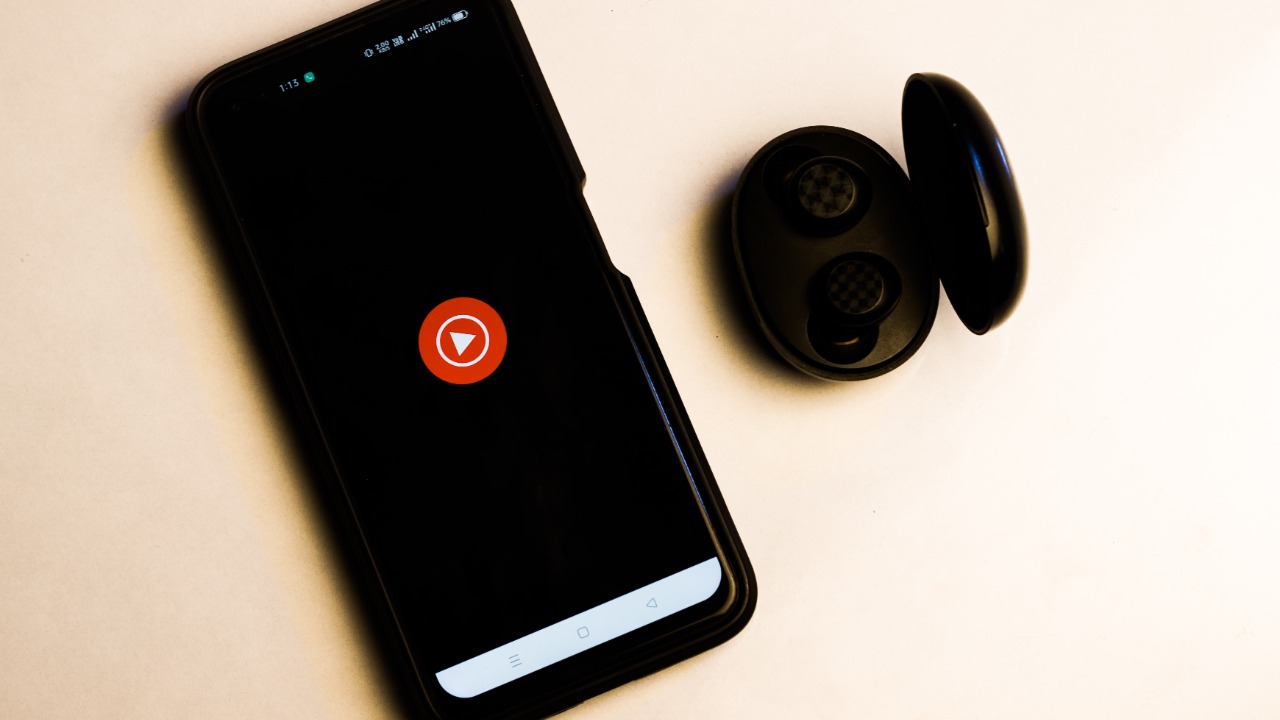

Building a good playlist takes time.
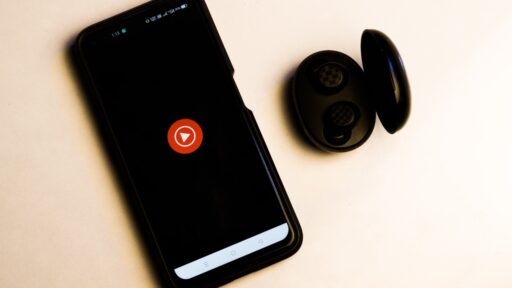
You choose songs that fit a particular mood, arrange them carefully, and expect YouTube Music to play what you selected.
Then the final song ends.
Instead of stopping, YouTube Music begins playing tracks you never added.
Sometimes the recommendations fit.
Sometimes a relaxing playlist suddenly turns into something completely different.
If this keeps happening, your playlist probably is not broken. The problem is usually Autoplay.
YouTube Music can automatically continue playing recommended songs after your playlist queue ends. The feature is designed to keep music running, but for someone who deliberately created a playlist, it can feel like the algorithm is taking control away.
What Does YouTube Music Autoplay Actually Do?
Autoplay does not normally add songs permanently to your saved playlist.
Instead, it extends the current listening queue.
Imagine you create a 25-song playlist.
YouTube Music plays those 25 songs.
When the final track finishes, Autoplay can generate additional songs that its recommendation system thinks are related to what you were listening to.
So when unfamiliar tracks suddenly appear, YouTube Music has not necessarily edited your playlist.
It has simply decided your listening session should continue.
That distinction is important.
Your carefully selected playlist may still contain exactly the songs you added.
Autoplay is changing what happens after those songs finish.
Why Can Autoplay Ruin a Carefully Curated Playlist?
Recommendation algorithms work with patterns.
They consider things such as listening history, likes, artists, genres, and related music.
But they do not always understand why you created a particular playlist.
Suppose someone likes:
Heavy metal.
Acoustic music.
Electronic music.
Jazz.
YouTube Music knows that person enjoys all four.
But perhaps the current playlist was designed specifically for an intense workout.
The user may want fast, aggressive tracks only.
A recommendation algorithm could see that the listener also likes acoustic music and decide that a slower song is relevant.
Technically, the recommendation reflects the person’s taste.
Contextually, it destroys the playlist.
That difference explains why some YouTube Music users complain that recommended tracks can feel completely disconnected from the mood they deliberately created. Community discussions in 2026 have included users reporting unexpected genre changes and increasingly inconsistent Autoplay recommendations.
How to Turn Off Autoplay in the YouTube Music App
The setting is surprisingly easy to miss.
Start playing a song from your playlist.
Open the Now Playing screen.
Then open the Up Next queue.
Scroll toward the bottom of that queue until you see Autoplay.
Turn it off.
Google’s YouTube Music community guidance confirms that the Autoplay control is located within the Up Next queue and can be switched off there.
After disabling it, YouTube Music should stop when the current queue finishes instead of automatically continuing with algorithmically selected songs.
That allows the playlist to behave more like a traditional playlist:
You choose the songs.
YouTube Music plays them.
The playlist ends.
Why Is the Setting So Difficult to Find?
Because Autoplay is not presented like an ordinary global preference.
Someone searching through the main YouTube Music Settings menu may expect to find:
Playback.
Autoplay.
On or Off.
Instead, the control is tied to the active playback queue.
That makes it easy to overlook.
Some users have even reported that the control can appear differently depending on which playback screen or type of content they are using. A Google Product Expert noted in February 2026 that users who do not see the normal Up Next interface may need to swipe upward from the Now Playing screen, and that mixes or radio sessions may behave differently from albums or individual songs.
So if you cannot immediately find the toggle, try playing a normal album or playlist first.
Then open the full queue.
Autoplay and Shuffle Are Not the Same Thing
This is another common source of confusion.
Shuffle changes the order of songs already inside your playlist.
Autoplay adds recommended music after the existing queue.
Suppose you have 50 tracks.
With Shuffle enabled, those same 50 tracks play in a randomized order.
With Autoplay enabled, YouTube Music may continue playing additional songs once those 50 tracks are finished.
Turning off Shuffle will therefore not necessarily stop unwanted recommendations.
You need to disable Autoplay itself.
Autoplay Does Not Mean Your Playlist Was Edited
This is worth repeating because the interface can make the situation confusing.
If YouTube Music starts playing a recommended song, open your actual saved playlist.
You may discover that the song is not there.
That is because Autoplay changes the playback session, not necessarily the saved playlist contents.
This is good news.
You usually do not need to manually remove dozens of mystery songs.
Turn off Autoplay and your playlist can return to playing only the music you intentionally saved.
Why Does YouTube Music Enable This Feature?
Because streaming platforms generally want listening sessions to continue.
A user who keeps listening spends more time inside the app.
Continuous recommendations can also help people discover new artists.
For casual listening, that can be useful.
Suppose someone plays one song and does not know what to choose next.
Autoplay solves the problem automatically.
YouTube Music can create an endless radio-like stream based on that starting point.
The problem appears when the user already knows exactly what they want.
A carefully constructed playlist is not a request for discovery.
It is a set of instructions.
That is why Autoplay can feel helpful in one situation and irritating in another.
Autoplay Can Be Great for Discovering New Music
Turning it off permanently is not necessarily right for everyone.
Imagine hearing a song from an unfamiliar artist.
You like it.
Instead of searching manually for similar music, let Autoplay continue.
The algorithm may introduce you to related artists you would never have found otherwise.
YouTube Music also allows users to influence recommendations through listening activity, likes, dislikes, and other personalization signals. Google’s official guidance explains that users can customize their music experience and organize content around artists, genres, and listening history.
So Autoplay itself is not a bad feature.
The real question is whether you want discovery or control at that particular moment.
It Becomes More Annoying With Mood-Based Playlists
Some playlists are especially vulnerable to bad recommendations.
Sleep playlists.
Workout playlists.
Meditation music.
Study playlists.
Party playlists.
Driving playlists.
Imagine falling asleep to quiet piano music.
Your playlist finishes.
YouTube Music decides a dramatically louder track is somehow related.
The recommendation may technically make sense according to your broader listening history.
It certainly does not make sense at 2 a.m.
Users have reported exactly this kind of frustration, particularly when using playlists for sleep or other tightly controlled listening situations.
In those cases, switching Autoplay off can significantly improve the experience.
Downloaded Playlists Can Create Another Problem
Autoplay can become particularly inconvenient when using downloaded music.
Suppose you download a large playlist before traveling.
You expect everything to work without mobile data.
But if YouTube Music moves into recommended content after the downloaded queue ends, the next suggested song may not be available offline.
Users have reported situations where this causes playback to stop or attempts to load non-downloaded tracks.
The safest approach for offline listening is to open the playlist from your downloaded library and make sure Autoplay or other dynamic playback features are not introducing online-only content.
What About Smart Downloads?
Smart Downloads is different again.
YouTube Music can automatically download music it thinks you may enjoy based on your listening habits.
That feature can be useful for offline listening, but it is not the same as Autoplay.
Smart Downloads controls which music is automatically stored on your device.
Autoplay controls what happens when your current queue finishes.
Google’s community guidance explains that Smart Downloads can automatically save recommended music for offline use while still allowing songs to be downloaded manually.
So if your problem is:
“Why are random songs playing after my playlist?”
check Autoplay.
If your problem is:
“Why are songs I didn’t manually download appearing in Downloads?”
check Smart Downloads.
Recommendations Can Still Appear Elsewhere
Turning off Autoplay does not remove YouTube Music’s recommendation system entirely.
You may still see:
Recommended playlists.
Suggested albums.
Radio stations.
Home-screen recommendations.
Similar artists.
Personalized mixes.
Those are fundamental parts of the service.
Disabling Autoplay only prevents the system from automatically continuing the current queue after your chosen content ends.
That is useful because it gives you control without completely losing YouTube Music’s discovery features.
You can still deliberately choose recommendations when you want them.
Should You Turn Autoplay Off?
If you frequently create playlists with a very specific mood or order, probably yes.
You may particularly appreciate disabling it if you use playlists for:
Sleeping.
Studying.
Exercise.
Driving.
Events.
Meditation.
Background music.
In these situations, consistency often matters more than discovery.
On the other hand, someone who frequently starts with one song and wants YouTube Music to keep finding similar tracks may prefer leaving it enabled.
There is no universally correct setting.
The problem is simply that many users do not realize it is active.
The Algorithm Isn’t Necessarily “Ruining” Your Playlist
Technically, YouTube Music is doing what the feature was designed to do.
Your playlist ends.
Autoplay creates something similar to an algorithmic radio station.
The frustration comes from expectations.
You expected:
Playlist finished = music stops.
YouTube Music interpreted it as:
Playlist finished = find more music.
Once you understand that distinction, the solution becomes much simpler.
One Toggle Can Give You Your Playlists Back
If songs you never added keep appearing after your YouTube Music playlists, do not immediately rebuild the playlist or start deleting recommendations.
Open the active playlist.
Go to Now Playing.
Open Up Next.
Scroll to Autoplay.
Switch it off.
That small setting changes YouTube Music from:
“I think you might also like this.”
back to:
“Play exactly what I selected.”
And for anyone who has spent years carefully arranging playlists, that can make a surprisingly big difference.
You can also explore Google’s official guidance for managing your YouTube Music library and recommendations here: YouTube Music Help