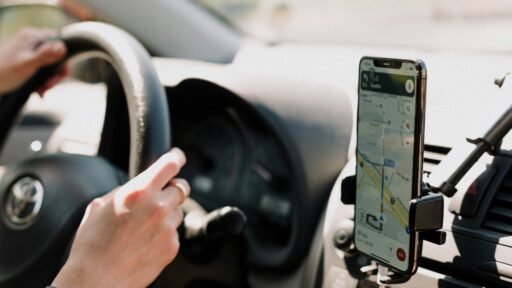

Google Maps lists are useful for collecting restaurants, attractions, shops and other places that belong together. A traveller might create a list for an upcoming holiday, while a salesperson might save prospects by region. The problem begins when dozens of lists contain hundreds of locations and finding one specific address becomes another search task.
Private labels provide a faster alternative for frequently used or difficult-to-remember places. Instead of opening a list and scrolling through its contents, a location can receive a memorable personal name such as “Client’s rear entrance,” “Airport pickup zone,” “Dentist parking” or “Warehouse loading gate.”
Google’s official guide to giving a place a private label confirms that labelled locations can appear directly on the map, within search suggestions and in Google Photos. The label is connected to the user’s Google Account rather than becoming a public change to the business or address.
That distinction makes labels particularly useful for personal navigation. The original place name remains unchanged for everyone else, while the account owner sees a description that carries more practical meaning.
Labels Replace Complicated Addresses With Memorable Names
Many locations are harder to remember than they should be. A building may have several entrances, a rural property may lack an obvious business name, or a customer’s site may be listed only as a long street address.
A label turns that formal location into something easier to recall. Searching for “Ahmed office” is simpler than remembering a building number, street name and postal code. Searching for “Event equipment entrance” can be more useful than navigating to the venue’s main public entrance.
This becomes especially valuable when several places have similar names. A person may regularly visit different branches of the same supermarket, hospital or office chain. Private labels can distinguish them by purpose rather than relying on the official branch description.
Labels also reduce dependence on recent searches. An address visited several months earlier may disappear beneath newer activity, but a clear personal label remains easier to retrieve through Maps search.
How to Add a Private Label on Android
On an Android phone or tablet, Google instructs the user to open Maps, search for an address or press and hold a location to drop a pin. After the place card opens at the bottom of the screen, the Label option can be selected and a personal name entered.
Businesses may use a slightly different path. After opening the business page, the user may need to select the three-dot More menu and choose Add label. Google documents both methods in its Android label instructions.
Once created, the label can be found through the You section of Google Maps under Labelled. Selecting the entry opens the location on the map, where directions can be started as usual.
The precise wording and position of controls may differ slightly between app versions. Google regularly adjusts the Maps interface, so Label may sometimes appear directly on the place card and sometimes inside an additional menu.
Labels Can Also Be Added From a Computer
The desktop version provides similar functionality for someone planning routes from a larger screen.
After opening Google Maps in a browser, the user can search for a place or address and select Add a label. Existing labels can be managed by opening Saved and then Labelled. Google’s desktop labelling guide explains how labels can be added, edited or removed.
Because labels are associated with the signed-in Google Account, a location labelled on a computer should remain available when the same account is used in the mobile app. This makes desktop planning useful for delivery routes, sales visits, property inspections and travel arrangements that will later be followed from a phone.
Account selection matters. A label created while signed into a personal Google Account may not appear when Maps is opened through a separate work account.
Searching Becomes Faster Than Browsing Lists
The greatest advantage of a label appears when the location is needed again.
Instead of opening Maps, entering the You tab, locating the correct list and scrolling through saved entries, the user can enter the custom label in the main search field. The labelled place may then appear among the search suggestions.
A memorable label can therefore function almost like a private navigation command. “Home,” “Work,” “Parents’ house” and similar saved locations already demonstrate this principle, but custom labels extend it to nearly any useful address.
This approach works particularly well when each location has a unique and descriptive name. A vague label such as “Office” may become confusing when several offices are saved. “North client office,” “Accountant office” and “New project office” are easier to distinguish.
Good labels should describe how the location is used rather than merely repeating its official name. The business name already exists in Maps; the private label should add information that the official listing does not provide.
Labels Are Better for Individual Places
A label is most effective when one specific location needs a personal identity.
A contractor could label the correct entrance to a construction site. A student could mark an off-campus study location. A parent could identify a school pickup gate. A delivery driver could save a loading area that is located behind the official address. A sales representative could label a prospect’s office using the contact’s name.
These examples involve one location that needs to be found quickly. Creating an entire list for each purpose would add unnecessary organisation.
Labels are also valuable for unlisted places. Dropping a pin allows a user to identify a meeting point, parking area, trail entrance or building gate even when no formal business profile exists at that exact position.
Lists Remain Better for Collections and Collaboration
Labels do not make Google Maps lists obsolete. The two features serve different purposes.
Lists are better when several places belong to one theme, trip or project. Google allows users to create named lists, assign icons, add notes, hide or display saved locations on the map and share qualifying lists through a link. Other people can also be invited to edit a shared list, making the feature useful for group planning. These controls are described in Google’s official guide to creating and managing place lists.
A “Weekend in London” list could contain hotels, restaurants, museums and transport stops. A “Potential retail partners” list could collect dozens of businesses for later review. A private label would not provide the same overview or collaborative structure.
Google has also added emoji icons for custom lists, allowing saved categories to be identified visually on the map. Its guide to customising Google Maps describes examples such as using a burger icon for restaurant recommendations or a mountain for future hikes.
The practical rule is straightforward: a list organises a collection, while a label renames an individual place for personal use.
Labels and Lists Can Work Together
A location does not always have to belong exclusively to one system.
A restaurant could be saved to a “Client lunch options” list while also receiving a private label such as “Quiet meeting restaurant.” A building could belong to a “Property inspections” list and carry a label identifying its access gate.
The list preserves the broader project structure. The label makes the individual place easier to search when immediate directions are needed.
Google Maps’ You tab also provides access to recent places, nearby saved locations and personal lists. Google states that saved places can be searched by their names or by personal notes added to them, providing another way to manage a large collection. The current controls are covered in the Google Maps You tab guide.
Even with those tools, labels remain faster for places visited repeatedly. Their value comes from avoiding the organisational steps required to reach a location stored deep inside a list.
Labels Are Private, but Account Security Still Matters
A private label does not publicly rename a location. Other Maps users will not see “Best customer” or “Family doctor” attached to the place because the description belongs to the account that created it.
However, anyone with access to that Google Account or an unlocked device may be able to view labelled locations. Sensitive descriptions should therefore be chosen carefully. A neutral label may be more appropriate than one revealing confidential business, health or personal information.
Device locks, two-step verification and regular account-security reviews remain important when Maps contains personal travel patterns, home addresses and customer locations.
A Small Feature Can Remove Repeated Friction
Google Maps lists are excellent for planning, discovery and collaboration, but they can become cumbersome when one specific place must be found immediately.
Private labels remove that friction by converting addresses and map pins into memorable, searchable names. They are especially useful for recurring destinations, obscure entrances, parking areas, client locations and places without clear public listings.
The most efficient Google Maps setup does not require choosing between labels and lists. It uses lists to organise groups of places and labels to make the most important individual locations instantly recognisable.