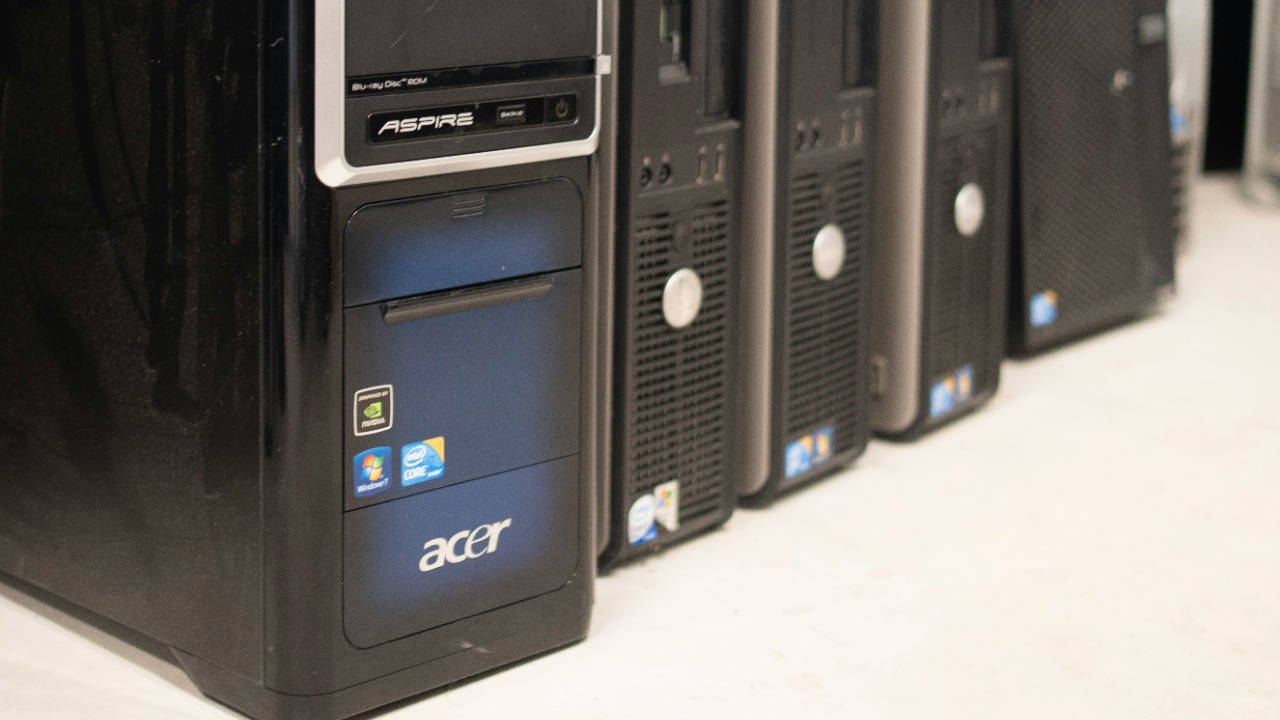

A used PC can deliver excellent performance for far less than the price of a new machine. Business desktops, gaming systems and laptops often enter the second-hand market while their hardware remains capable of handling office work, study, streaming, creative applications and even modern games.
The risk is that a clean exterior and an attractive specification list can hide expensive problems. A computer may contain an ageing storage drive, a worn battery, unsupported hardware or components that differ from those advertised. The buyer may only discover these issues after the payment has been completed.
A careful inspection should therefore cover more than whether the PC turns on. These seven checks can help reveal its real condition, expected lifespan and total ownership cost.
Check 1: Confirm the Exact Processor and Graphics Hardware
A seller describing a computer as an “Intel Core i7 PC” has not provided enough information. Intel has released many Core i7 generations, and the performance difference between older and newer models can be substantial.
The full processor model should be checked through Task Manager, System Information or the BIOS. Intel’s official processor identification guide explains how the model number can be used to determine the processor family and generation. The specification can then be verified through the Intel product database.
The graphics hardware requires the same attention. A gaming PC advertised with dedicated graphics should show the exact graphics card in Device Manager, Task Manager or a trusted hardware-information utility. The buyer should confirm that the system is using the advertised card rather than relying only on integrated graphics.
Processor age also affects operating-system support. Microsoft requires compatible hardware, Secure Boot capability and TPM 2.0 for officially supported Windows 11 installations. Its Windows 11 system requirements and PC Health Check application can confirm whether the computer qualifies.
This check is especially important because Windows 10 support ended on October 14, 2025. A computer that cannot officially run Windows 11 may continue working, but it no longer has the same straightforward path to regular Windows security support.
Check 2: Verify the RAM, Storage and Upgrade Options
The installed memory and storage should be checked directly inside Windows rather than accepted from the listing. Task Manager can show the total memory, current speed and the number of memory slots in use. Disk Management can confirm the number and capacity of installed drives.
A PC advertised with 16GB of RAM might contain one 16GB module, two 8GB modules or a mixture of mismatched parts. The configuration can affect performance and determine whether future upgrades will require replacing the existing memory.
Storage capacity also needs clarification. A listing that says “1TB storage” may refer to a fast solid-state drive, a slower mechanical hard drive or a combination of several drives. Windows includes Disk Management, which displays connected disks, partitions and usable capacity.
Upgradeability should be considered before purchase. Some compact computers and thin laptops use soldered memory or difficult-to-replace storage. A low purchase price becomes less attractive when the machine cannot be expanded to meet future needs.
The buyer should check the manufacturer’s service manual for supported memory limits, storage formats and available expansion slots. Desktop buyers should also inspect whether the power supply has enough capacity and suitable connectors for a future graphics card.
Check 3: Test the Health of the Storage Drive
A computer can start normally even when its storage drive is approaching failure. Warning signs may include slow boot times, freezing, corrupted files, unusual clicking sounds from a mechanical drive or repeated disk-related errors.
Windows Security provides a Device performance and health section that can identify certain storage, battery and system problems. Microsoft explains how this information appears in its Device performance and health guide.
Compatible drives may also display reliability information under Advanced storage settings. Microsoft advises investigating critical storage warnings promptly because they can indicate that a drive is at risk of failure.
A short test cannot guarantee that a drive will remain reliable, but it can expose obvious warning signs. The computer should be restarted several times, large files should be opened and copied, and applications should launch without unexplained pauses.
If the PC contains an old mechanical hard drive, the cost of replacing it with an SSD should be included in the purchasing decision. A cheap computer may still be worthwhile, but only when the likely upgrade expense is reflected in the price.
Check 4: Inspect the Screen, Ports, Keyboard and Chassis
External condition can reveal how the computer was treated. Cracked panels, missing screws, bent hinges and uneven gaps may indicate drops, rough repairs or repeated disassembly.
A laptop display should be checked against bright, dark and solid-colour backgrounds. This can reveal dead pixels, bright spots, discolouration, pressure marks and backlight problems. The screen should also remain stable while the lid is moved through its normal range.
Every important port should be tested using a suitable device. USB ports, headphone sockets, Ethernet, HDMI, DisplayPort, memory-card readers and charging connectors can become loose or damaged even when they look normal.
The keyboard should be tested in a text editor, including function keys and less frequently used characters. The trackpad should respond consistently across its full surface, while a desktop system should be checked for damaged front-panel buttons and unreliable audio connections.
Cosmetic marks may be acceptable when the price is low, but structural damage is different. A cracked hinge mount or loose charging socket can turn into a costly repair after only a short period of use.
Check 5: Listen for Cooling Problems and Test Stability
A used PC should remain stable under more than idle conditions. It may appear normal on the desktop but overheat, crash or shut down when the processor or graphics card begins working harder.
The machine should be allowed to run long enough for the cooling system to become active. Loud grinding, rattling or rapidly changing fan noise may indicate damaged bearings, heavy dust accumulation or poor contact between the processor and its cooler.
A short workload such as playing a high-resolution video, opening several applications or running a trusted hardware diagnostic can reveal instability. Unexpected restarts, blue screens, graphical corruption and sudden performance drops require further investigation. Microsoft notes that recurring stop errors can be associated with hardware, drivers or software and may require diagnostic work.
The buyer should also examine the vents for dust and check whether hot air can leave the system normally. A desktop case that has been heavily modified deserves closer inspection because poor cable management, missing fans or an unsuitable power supply can affect reliability.
A computer that crashes during testing should not be accepted based on a promise that it “only needs Windows reinstalling.” The cause may be inexpensive, but it could also involve failing memory, storage, graphics hardware or the motherboard.
Check 6: Examine the Battery and Charger on a Used Laptop
Laptop battery condition can significantly change the real value of a used computer. A machine that lasts only 30 minutes away from a socket may require an immediate battery replacement.
Windows can generate a detailed battery report using the powercfg /batteryreport command. The report compares the battery’s original design capacity with its current full-charge capacity and provides information about recent usage. Microsoft explains the process in its Windows battery-care guide.
A noticeably reduced full-charge capacity indicates battery wear. The buyer should also watch for sudden percentage drops, failure to charge, excessive heat or physical swelling. A swollen battery can distort the trackpad, keyboard or lower case and should not remain in use.
The included charger must match the laptop’s required voltage and power rating. An underpowered adapter may charge slowly or allow the battery to discharge during demanding work. Damaged cables, loose connectors and unknown replacement chargers should be treated as additional costs rather than minor details.
Check 7: Confirm Windows Activation, Ownership and the Final Price
A used PC should have a legitimately activated operating system. Activation status can be checked under Settings, System and Activation. Microsoft confirms that this page shows the installed Windows edition and whether the system is activated.
The seller should remove personal accounts, company management profiles and BIOS passwords before ownership changes. A former corporate PC may remain connected to an organisation’s management system, while a machine protected by an unknown firmware password can restrict configuration and future repairs.
The buyer should record the serial number and compare it with the number shown in the BIOS or manufacturer software. The seller should also provide a receipt containing the model, serial number, price and date, particularly for a higher-value gaming or workstation computer.
After purchase, Windows should be reset or cleanly reinstalled rather than continuing to use the seller’s existing installation. Microsoft’s Reset your PC guidance explains that the “Remove everything” option reinstalls Windows while deleting existing personal files, applications and settings.
The final decision should account for more than the advertised price. A battery, SSD, RAM upgrade, charger or operating-system issue can quickly eliminate the savings. The best used PC is not always the cheapest listing; it is the machine whose condition, specifications and future costs have been properly verified.