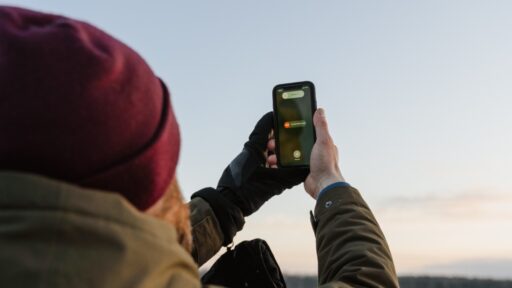
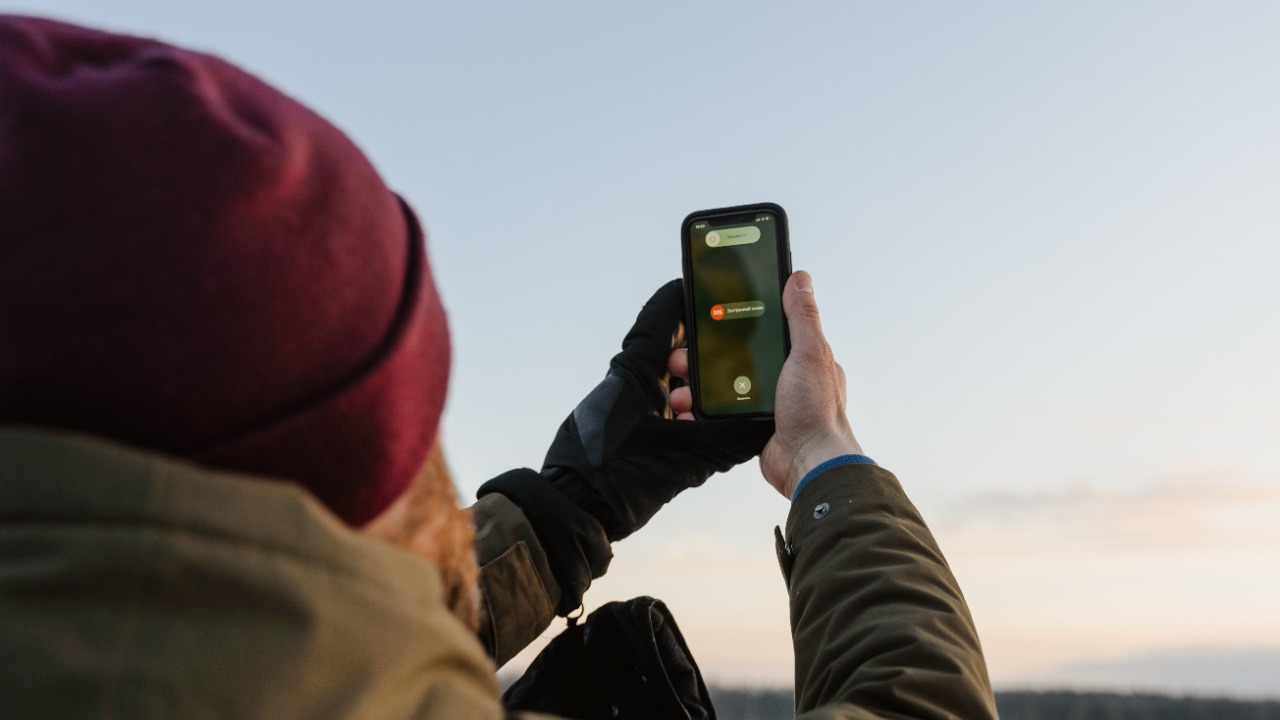

A weak phone signal can cause dropped calls, delayed messages, poor audio and painfully slow mobile data. Changing carriers may eventually solve a persistent coverage problem, but it should not be the first response. Many reception issues can be improved by changing the phone’s location, reconnecting it to the network, updating its settings or routing calls through Wi-Fi.
The first step is identifying whether the problem is genuinely weak reception. Signal bars show the phone’s connection to a cellular network, but they do not guarantee fast data. A phone can display several bars while a crowded tower, temporary outage or overloaded network produces poor performance. Apple notes that mobile data can feel slow because of network congestion or while a device reconnects to towers, even when the displayed signal appears adequate.
Move Away From the Obstruction
Physical surroundings can weaken cellular signals before they reach the phone. Concrete walls, underground rooms, metal structures, energy-efficient glass and large buildings may interfere with reception. Google also notes that buildings, walls and some phone cases can obstruct mobile service, including 5G.
Moving closer to a window is often the simplest improvement. A higher floor may receive a clearer signal than a basement or interior room. When reception is poor inside a shop, office or house, stepping outdoors can help determine whether the building is the problem.
The phone should also be tested in several parts of the property. A difference of only a few metres can matter because walls, nearby structures and the direction of the closest tower affect how radio signals reach the device.
A bulky case containing metal plates, magnetic mounts or unusual shielding materials can be removed temporarily during testing. Most normal plastic and silicone cases do not cause major problems, but testing without the case is an easy way to eliminate it as a possible obstruction.
Toggle Airplane Mode to Force a Fresh Connection
A phone can remain attached to a distant or poorly performing cell even after a stronger connection becomes available. Turning Airplane Mode on briefly disconnects the cellular radio and forces the device to search again when the setting is disabled.
Apple recommends enabling Airplane Mode for at least 15 seconds when an iPhone shows SOS, No Service or Searching. Google provides similar Android guidance and recommends waiting approximately 10 seconds before switching Airplane Mode off.
This technique does not create coverage where none exists. It simply refreshes the connection and may help after travelling, leaving an underground area, crossing a coverage boundary or experiencing a temporary network problem.
A complete restart can provide a deeper refresh. Both Apple and Google list restarting among their basic steps for resolving cellular or internet connection problems.
Update the Phone and Its Carrier Settings
Mobile connectivity depends on more than physical antennas. Operating-system updates can include modem improvements, compatibility fixes and network-related corrections.
An outdated phone may have difficulty connecting reliably after a carrier changes its network configuration. The device should therefore be running a current version of iOS or Android before more disruptive troubleshooting begins.
On an iPhone, carrier settings deserve separate attention. These updates are supplied by the mobile provider and can improve network connectivity, performance and support for services such as 5G or Wi-Fi Calling. Apple says an available update can be checked by connecting to Wi-Fi and opening Settings, General and About.
Android settings vary by manufacturer, but software and carrier-service updates should be installed through the device’s update menus and app store. Google recommends checking for a current Android version when troubleshooting Pixel connectivity.
Turn On Wi-Fi Calling Indoors
Wi-Fi Calling is one of the most effective solutions for weak indoor reception. Instead of relying entirely on the nearest cellular tower, the phone routes compatible voice calls through a Wi-Fi internet connection.
Apple specifically recommends Wi-Fi Calling when an iPhone has a low cellular signal. The option is normally found under Settings, Cellular, the selected line and Wi-Fi Calling. Availability depends on the carrier and plan.
On supported Android phones, the setting is generally located under Network and Internet, SIMs, the carrier SIM and Wi-Fi Calling. Google confirms that not every carrier supports the feature and that the phone may display “Wi-Fi calling” or “Internet Call” when it is active.
Wi-Fi Calling improves calls and, depending on carrier support, text-message reliability. It does not strengthen the cellular signal bars themselves. Its value comes from bypassing a weak indoor cellular connection.
The Wi-Fi network must also be stable. Poor router placement or an overloaded internet connection can produce distorted audio and dropped Wi-Fi calls. Moving the router to a central, elevated and open position may therefore improve the experience.
Test LTE When 5G Is Unstable
A 5G symbol does not always mean the connection is faster or more reliable than LTE. Coverage type, network capacity, frequency band and distance from the tower all affect performance.
When a phone repeatedly switches between weak 5G and LTE, testing LTE temporarily may produce a steadier connection. Apple allows supported iPhones to use 5G Auto, 5G On or LTE. In 5G Auto mode, the iPhone can switch to LTE when 5G does not provide a noticeably better experience.
Pixel phones may also provide a preferred network type setting with options such as 5G and LTE, although the available choices vary by carrier and country.
This change should be treated as a test rather than a universal recommendation. In some locations, 5G will be substantially better. In others, mature LTE coverage may be more consistent. The objective is to identify which setting produces stable calls and usable data at the location where the problem occurs.
Check the SIM, eSIM and Active Line
A damaged, incorrectly seated or outdated physical SIM can cause intermittent service. The phone should be powered down before a removable SIM is inspected and reinserted carefully.
Apple advises users with a physical SIM to remove and reinstall it when cellular service is unavailable. A SIM that is damaged, does not fit correctly or was transferred from another device may need to be replaced by the carrier.
Dual-SIM users should confirm that the correct line is enabled for calls and mobile data. An inactive line, incorrect default SIM or incomplete eSIM activation can look like a weak-signal problem even when network coverage is normal.
A useful test is placing the SIM in another compatible phone. When both devices experience the same problem in the same locations, the issue is more likely connected with the SIM, account or network. When only one phone struggles, hardware or device configuration becomes more likely.
Reset Network Settings Only After Simpler Fixes
Network settings can occasionally become corrupted after updates, SIM changes or configuration-profile installations. Resetting them may resolve persistent connection problems, but it should not be the first step.
On supported Pixel phones, Google provides a Reset Mobile Network Settings option under Settings, System and Reset options.
The equivalent iPhone function is Reset Network Settings. It removes saved Wi-Fi networks and passwords, cellular-related settings and certain VPN or network configurations without deleting personal photos or apps. Apple recommends considering this step after simpler troubleshooting has failed.
Any important Wi-Fi passwords and custom network details should be recorded before the reset. Manually changing APN values without carrier instructions should generally be avoided because incorrect information can prevent mobile data from working.
Consider a Properly Approved Signal Booster
A signal booster can improve reception inside a home, office or vehicle by receiving an existing outdoor cellular signal, amplifying it and rebroadcasting it indoors.
A booster cannot manufacture a usable connection when no carrier signal reaches the outside antenna. It works best where reception exists outdoors but becomes weak after passing through the building.
In the United States, the FCC requires consumer boosters to meet network-protection standards, and users generally need to register the device with their wireless provider. Improperly designed or installed boosters can create interference and disrupt calls, including emergency communications.
Only certified equipment supporting the carrier’s actual frequency bands should be considered. Cheap unapproved amplifiers, decorative antenna stickers and plug-in “signal enhancers” should not be expected to provide a legitimate improvement. Outside the United States, local telecommunications rules and carrier requirements should be checked before installation.
Ask the Carrier to Check the Account and Local Network
Improving reception without switching carriers can still involve contacting the existing provider. The carrier can confirm whether the account is active, the correct plan is provisioned, the phone is blocked, the SIM requires replacement or an outage is affecting the area.
Apple recommends asking the provider to verify coverage and local outages when service remains unavailable. Google similarly states that the carrier is the appropriate contact for continuing problems involving cellular calls, mobile data and voicemail.
The carrier may also refresh network provisioning or confirm that the specific phone model supports its LTE and 5G bands. This is particularly important for imported devices, older phones and models originally manufactured for another market.
The Best Fix Depends on Where the Signal Fails
A signal problem that occurs only in one room usually points to building interference. Wi-Fi Calling, a better indoor position or a certified booster may provide the strongest improvement.
A problem that follows the phone everywhere may indicate outdated settings, SIM trouble, incomplete activation or hardware damage. A problem affecting several customers in the same area is more likely to involve coverage, congestion or an outage.
The most effective sequence is to move to a clearer location, toggle Airplane Mode, restart the phone, install updates and activate Wi-Fi Calling. The SIM and network settings can be checked next, followed by carrier support or a compliant signal booster for persistent indoor problems.
These steps cannot transform a true coverage dead zone into strong cellular service, but they can eliminate many common causes of poor reception without requiring a new carrier or phone number.