
Imagine driving down a highway when traffic suddenly slows.
A crashed vehicle is blocking part of the road.
Debris is sitting in a lane.
Or there is a speed check ahead that other drivers might want to know about.
Apple Maps allows users to report incidents so other drivers can receive warnings. But reaching for a phone while driving would defeat the purpose of a safety feature.
Fortunately, you don’t have to.
Apple Maps supports voice-based incident reporting through Siri, allowing drivers to report certain road problems without touching their iPhone. Apple also provides reporting controls through CarPlay, making the feature particularly useful while navigating.
The capability is easy to overlook, but once someone knows the correct Siri commands, reporting a road hazard can take only a few seconds.
Siri Can Report an Incident for You
The simplest method is to ask Siri.
While using Apple Maps navigation, a driver can say something such as:
“Siri, report a crash.”
Apple says Siri can also handle requests such as reporting a hazard or speed check while following driving directions.
That means there is no need to unlock the phone, search through Apple Maps menus or attempt to tap a small icon while the vehicle is moving.
The entire interaction can remain voice controlled.
Apple explains the feature in its official Maps incident-reporting guide.
This is exactly the kind of feature voice assistants are particularly well suited for.
What Can You Report in Apple Maps?
The available incident categories can depend on the country or region.
Apple Maps commonly supports reports involving a crash, hazard, speed check or roadwork, while additional reporting options may be available in certain locations.
A hazard can cover something affecting normal traffic flow or creating a potential safety issue.
For example, debris in the roadway could justify a hazard report.
A collision could be reported as a crash.
Road construction may appear under roadwork where that category is supported.
The purpose is not to create a detailed accident report.
It is to quickly warn other Apple Maps users approaching the same location.
You Can Also Report Something You See Ahead
Siri makes the system especially useful because road incidents are often noticed with very little warning.
A driver does not necessarily have time to interact with an interface.
A voice command can be issued almost immediately.
That creates an important distinction between reporting a hazard safely and attempting to document it.
Apple Maps does not need photographs.
It does not need a lengthy explanation.
It mainly needs the incident type and location.
The phone already knows where the vehicle is.
That allows the report to remain short.
CarPlay Makes Reporting Even Easier
Someone using Apple CarPlay has another option.
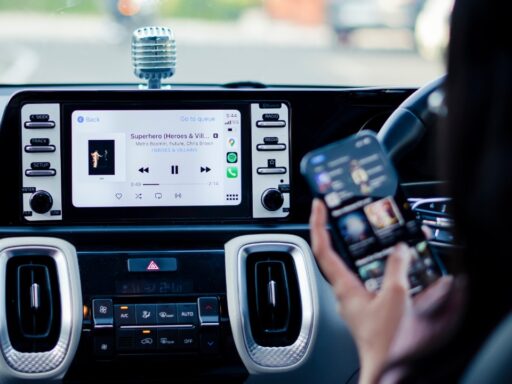
Apple Maps can display an incident-reporting control directly through the CarPlay interface.
Apple’s CarPlay guide explains that drivers can report traffic incidents while following turn-by-turn directions.
The current instructions are available through Apple’s CarPlay Maps guide.
Depending on the vehicle and software version, someone may use an on-screen report button or Siri.
Voice remains the better choice while actively driving because it minimizes interaction with the display.
The CarPlay interface becomes particularly useful when a passenger is handling navigation or the vehicle is safely stopped.
Why Reporting Matters
Navigation applications have changed from static digital maps into live transportation networks.
A map can tell someone that a road exists.
A modern navigation service tries to tell him what is happening on that road right now.
That requires information.
Some traffic conditions can be inferred automatically from vehicle movement.
If hundreds of phones suddenly begin moving at 10 mph along a highway where traffic normally travels at 60 mph, navigation systems can detect congestion.
But software cannot always determine why traffic slowed.
Was there a collision?
Construction?
A vehicle stopped in the road?
Debris?
That is where user reports become valuable.
People provide context that location data alone may not reveal.
Apple Maps Isn’t the Only Service Doing This
Crowdsourced incident reporting has been a major part of navigation applications for years.
Waze became particularly well known for allowing drivers to share information about crashes, police activity, hazards and traffic.
Google Maps subsequently incorporated many similar community-driven features.
Apple has been moving in the same direction by making incident reports part of its navigation experience.
The broader idea is powerful.
One driver’s observation can become a warning for hundreds of people behind him.
That could encourage approaching drivers to slow down before reaching a dangerous area.
It can also help navigation software determine whether another route would be faster.
Apple Maps Can Ask Whether an Incident Is Still There
Crowdsourced information has an obvious weakness.
Road conditions change.
A crash can be cleared.
Debris can be removed.
Construction can finish.
A speed check can move.
A report that was accurate 30 minutes ago may no longer be useful.
Apple therefore allows Maps users to confirm whether previously reported incidents are still present. Apple’s documentation explains that Maps may ask users about an incident and allow them to confirm whether it remains there.
That creates a basic community verification system.
One person reports something.
Other approaching drivers help determine whether the warning should remain active.
You Don’t Need to Explain Everything to Siri
Voice assistants sometimes make people think they need to speak in rigid commands.
Usually, that is unnecessary.
Siri is designed to understand natural variations.
Instead of memorizing one exact phrase, someone can use straightforward requests such as:
“Siri, report a hazard.”
or
“Siri, report a crash.”
The key is making the incident type clear.
There is no reason to describe the entire situation.
Siri does not need:
“There appears to be a silver sedan approximately 200 feet behind the overpass partially blocking the right-hand lane.”
The driver’s location provides much of the necessary context.
A short command is safer and easier.
Make Sure Siri Is Available Before Driving
Hands-free reporting obviously depends on Siri working correctly.
Someone who has disabled Siri or restricted voice activation may not be able to use the feature as expected.
It is therefore worth checking voice-assistant settings before starting a trip rather than troubleshooting them while driving.
Apple provides current Siri configuration instructions through its Siri support documentation.
CarPlay users should also confirm that their iPhone is properly connected to the vehicle.
Once everything is configured, Siri can handle considerably more than hazard reporting.
Drivers can request directions, call someone, send messages, play music and perform other supported tasks without reaching for the phone.
Siri Can Be More Useful Than Touch Controls While Driving
Voice assistants sometimes feel unnecessary at home.
Is asking Siri to set a timer really easier than tapping the screen?
Inside a moving vehicle, the calculation changes completely.
Eyes should remain on the road.
Hands should remain available for driving.
That makes voice interfaces genuinely valuable.
Reporting a hazard is an ideal example because the information needs to be submitted quickly but does not require complex interaction.
Say the command.
Siri handles the report.
Continue driving.
No menu hunting is necessary.
But Don’t Report Something If Doing So Creates a Distraction
Hands-free does not mean distraction-free.
A driver still needs to judge whether interacting with Siri is appropriate.
If traffic conditions are complicated, the correct priority is driving.
The report can wait.
A hazard-warning feature is supposed to improve road safety, not encourage someone to concentrate on whether Siri understood a command while navigating a dangerous situation.
The same principle applies to CarPlay.
A large dashboard interface may be easier to use than a phone, but staring at it while driving is still a distraction.
Voice control reduces that risk.
It does not eliminate it.
Emergency Situations Need Emergency Services
Apple Maps incident reporting should also not be confused with requesting emergency assistance.
If someone encounters a serious crash where people may be injured, reporting the crash in Maps is not a replacement for contacting emergency services when it is safe and appropriate to do so.
A Maps report primarily warns other road users.
Emergency responders perform an entirely different function.
That distinction is important because reporting something to a navigation platform does not mean police, firefighters or medical services have been dispatched.
Think of Apple Maps reports as traffic information—not emergency calls.
Why Doesn’t Every Apple Maps User See the Same Options?
Apple’s incident-reporting features vary geographically.
Certain categories are not available in every country or region. Apple specifically notes regional availability limitations in its Maps documentation.
That means two people using similar iPhones in different countries may see different reporting choices.
Software versions can also matter.
Someone following instructions found online from several years ago may encounter an interface that no longer looks identical.
The safest approach is to keep iOS updated and check Apple’s current support documentation when an expected option is missing.
The Feature Becomes More Valuable as More Drivers Use It
Crowdsourced navigation has an unusual network effect.
One user reporting hazards is not particularly powerful.
Millions of users doing it can be.
Imagine a piece of debris falls onto a busy highway.
The first driver notices it and tells Siri:
“Report a hazard.”
Apple Maps receives the report.
Vehicles approaching the area can then receive a warning.
Other drivers confirm that the hazard remains.
Someone eventually removes the debris.
Later drivers indicate that it is gone.
The warning disappears.
That entire information cycle can happen without a conventional traffic-control center manually entering the event.
The drivers themselves become sensors.
This Is One of Those Apple Maps Features People Easily Miss
Apple Maps has changed significantly since its famously troubled launch.
Modern versions include detailed navigation, cycling directions, transit information, EV-related features, Look Around imagery and increasingly sophisticated traffic information.
Yet some of its most useful capabilities are surprisingly small.
Hands-free hazard reporting is one of them.
There is no complicated setup.
No special accessory.
No separate application.
If Siri and Apple Maps are available and incident reporting is supported in the region, the functionality is already built into the navigation experience.
The challenge is simply knowing it exists.
So How Do You Report an Apple Maps Hazard Without Touching Your Phone?
The answer is remarkably simple.
While navigating with Apple Maps, activate Siri and say something like:
“Siri, report a hazard.”
For a collision:
“Siri, report a crash.”
Where supported, other incident types can be reported in a similar way.
CarPlay also provides incident-reporting options, giving drivers another way to contribute road information.
The feature works because Apple Maps already knows the vehicle’s approximate location. The driver mainly needs to tell it what happened.
That makes this one of the rare smartphone features where using less of the screen makes the technology more useful.
And when the person using it is behind the wheel, that is exactly how it should work.