
A faster internet plan does not automatically create reliable Wi-Fi throughout a home. The connection entering the property may be capable of high speeds, yet bedrooms, home offices, upstairs rooms and outdoor areas can still experience buffering, unstable video calls or frequent disconnections.
The problem often lies inside the home rather than with the internet provider. Thick walls, long distances, crowded wireless channels, outdated computer hardware and poor router placement can all reduce performance. In many cases, replacing the entire network is unnecessary. The right accessory can improve coverage, create a more stable connection or help important devices avoid wireless congestion.
Before purchasing anything, the household should identify whether the main problem is weak coverage, limited Ethernet ports, an outdated device or an unreliable connection between rooms. These five accessories address different parts of the home-networking problem.
1. A Mesh Wi-Fi System for Whole-Home Coverage
A mesh Wi-Fi system is one of the most effective upgrades for a large home, a multi-storey property or any space with several Wi-Fi dead zones. Instead of relying on one router to serve every room, a mesh system uses multiple connected units positioned around the property.
One unit normally connects to the modem, while additional mesh points extend the network into other areas. The system presents one network name, allowing compatible phones, laptops and smart devices to move between access points without requiring the user to manually change networks.
Placement remains important. A mesh node should not be installed directly inside a dead zone where it can barely communicate with the main router. It should sit between the router and the weak-coverage area. Google’s official guidance on mesh Wi-Fi placement recommends keeping points in open positions between the nearest strong point and the area experiencing poor coverage.
Mesh systems are especially useful when several family members are streaming, gaming, attending video meetings or controlling smart-home devices at the same time. However, adding too many points can be counterproductive. Closely positioned nodes may create unnecessary interference rather than improving coverage.
For the strongest performance, households should consider a mesh system that supports Ethernet backhaul. This allows the nodes to communicate through network cables instead of using part of their wireless capacity to exchange data. Wireless backhaul remains convenient, but wired backhaul generally creates a more consistent connection in demanding environments.
2. An Ethernet Switch for More Stable Connections
An Ethernet switch does not increase the speed supplied by the internet provider, but it can significantly improve how that connection is distributed inside the home. It expands one router Ethernet port into several ports, allowing more devices to use wired connections.
Smart televisions, desktop computers, gaming consoles, network storage devices and streaming boxes often perform more consistently over Ethernet. Moving these stationary devices away from Wi-Fi also reduces the number of products competing for wireless airtime.
A basic unmanaged switch is normally sufficient for a home network. It requires little or no configuration: one cable connects the switch to the router, and the remaining ports connect to individual devices. NETGEAR describes its unmanaged switches as plug-and-play equipment designed to expand wired connectivity without additional management settings. Its official Ethernet switch guidance notes that unmanaged models are particularly suitable for home offices and straightforward network expansion.
Gigabit Ethernet is suitable for most households, but the rest of the equipment must also support gigabit speeds. A modern switch cannot deliver full gigabit performance through an old 100Mbps router port or damaged cable.
Homes with multi-gigabit internet, Wi-Fi 7 equipment or high-speed network storage may benefit from a 2.5Gbps switch. Standard broadband users, however, should avoid paying more for multi-gigabit hardware unless their router, computers and cabling can use the additional capacity.
3. MoCA Adapters for Wired Networking Through Coax Cables
Running new Ethernet cables between floors can be expensive and disruptive. A pair of MoCA adapters offers an alternative by sending network data through the coaxial cables already installed for cable television.
One adapter connects to the router and a nearby coax outlet. Another adapter connects to a coax outlet in a distant room, where it provides an Ethernet connection for a computer, television, gaming console or additional wireless access point.
The Multimedia over Coax Alliance explains that MoCA technology reuses existing coax wiring to provide low-latency, secure and consistent home-network connections. Current MoCA technology can support multi-gigabit networking under suitable conditions.
MoCA adapters can be particularly valuable for mesh Wi-Fi backhaul. Instead of asking mesh points to communicate wirelessly through floors and walls, the adapters create a wired path over coax. The MoCA Alliance’s Wi-Fi backhaul guidance describes this approach as a way to deliver consistent Ethernet performance throughout a home using existing coaxial cabling.
Compatibility must be checked before installation. Some satellite television systems use frequencies that can conflict with MoCA. Coax splitters may also need to support the required frequency range, and a point-of-entry filter may be necessary to keep the network signal contained within the property.
MoCA is not the cheapest Wi-Fi accessory, but it can provide a much stronger connection than a wireless extender when thick walls or multiple floors prevent reliable wireless communication.
4. A Wi-Fi Extender or Wired Access Point for One Problem Area
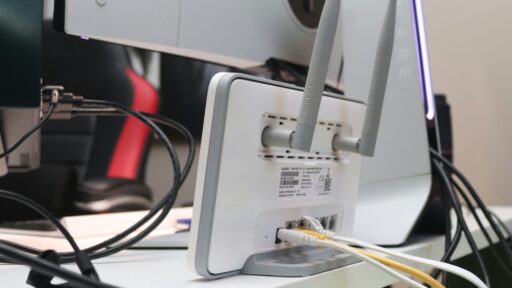
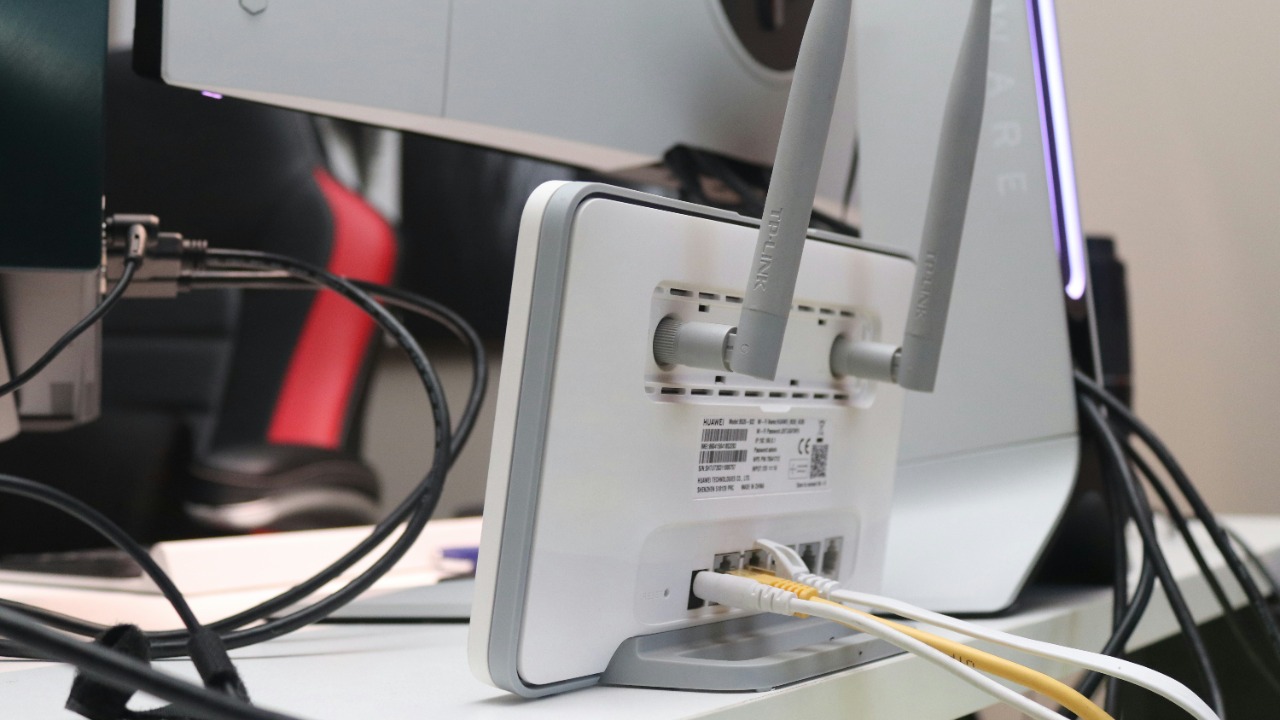
A Wi-Fi range extender can be a practical solution when only one room has weak coverage. The device receives the existing wireless signal and rebroadcasts it farther into the property.
The extender must be placed where the original Wi-Fi signal is still reasonably strong. Installing it in the room with no usable signal gives it very little connection to repeat. A position halfway between the router and the problem area is usually more effective.
Range extenders are affordable and simple to install, but performance can vary. Traditional repeaters may use the same wireless radio to receive and retransmit data, which can reduce available throughput. They may also create a separate network name, forcing devices to remain connected to a weaker access point longer than expected.
An extender with an Ethernet port may also support access-point mode. In this setup, an Ethernet cable carries data from the router to the extender, and the device creates a fresh Wi-Fi signal in the destination area. TP-Link’s official access-point configuration guide confirms that supported range extenders can operate as access points when connected through Ethernet.
A wired access point is generally the stronger choice when cabling is available. A wireless extender remains useful for rental homes, temporary setups and smaller properties where installing Ethernet is impractical.
5. A Modern USB or PCIe Wi-Fi Adapter for Older Computers
Sometimes the home Wi-Fi network is functioning correctly, but one computer continues to experience slow speeds or unreliable connections. The cause may be an outdated wireless adapter inside the device.
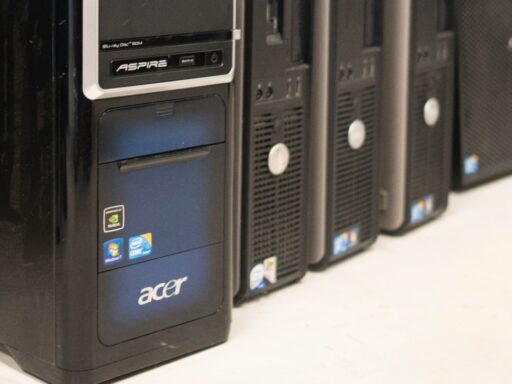
An older laptop or desktop may support only Wi-Fi 4 or an early Wi-Fi 5 implementation. It may also have a weak antenna, limited channel support or outdated drivers. A modern USB Wi-Fi adapter can provide a relatively simple upgrade without replacing the computer.
Desktop users may gain better performance from a PCIe Wi-Fi card with external antennas. This type of adapter usually offers stronger reception and more flexible antenna positioning than a small USB dongle. Installation requires opening the computer, so compatibility with the motherboard, operating system and available expansion slots must be confirmed.
A Wi-Fi 6 or Wi-Fi 6E adapter can improve performance when paired with a compatible router. Wi-Fi 6E adds access to the 6GHz band, which can provide additional capacity and experience less interference from older household devices. However, both the router and computer must support Wi-Fi 6E before the 6GHz connection becomes available. Intel’s official Wi-Fi 6E overview emphasizes that the compatible client device and Wi-Fi 6E router work together to provide access to the newer band.
Operating-system support also matters. Drivers should be downloaded from the adapter manufacturer, and users should confirm support for their current version of Windows, Linux or macOS before purchasing the hardware.
The Right Accessory Depends on the Actual Wi-Fi Problem
No single accessory solves every home-network issue. A mesh system is suitable for widespread coverage problems, while a range extender may be enough for one weak room. An Ethernet switch improves reliability for stationary devices, MoCA adapters create wired connections between distant areas, and a modern Wi-Fi adapter can update an older computer.
Router placement should also be reviewed before new equipment is purchased. The router should be positioned centrally, elevated and away from enclosed cabinets, large metal objects and unnecessary obstructions. Google’s router placement recommendations advise placing Wi-Fi equipment in a central, open position rather than hiding it on the floor or inside furniture.
The most successful upgrade begins with identifying the bottleneck. When the accessory matches the problem, a home network can become faster, more stable and better prepared for streaming, remote work, gaming and an expanding collection of connected devices.