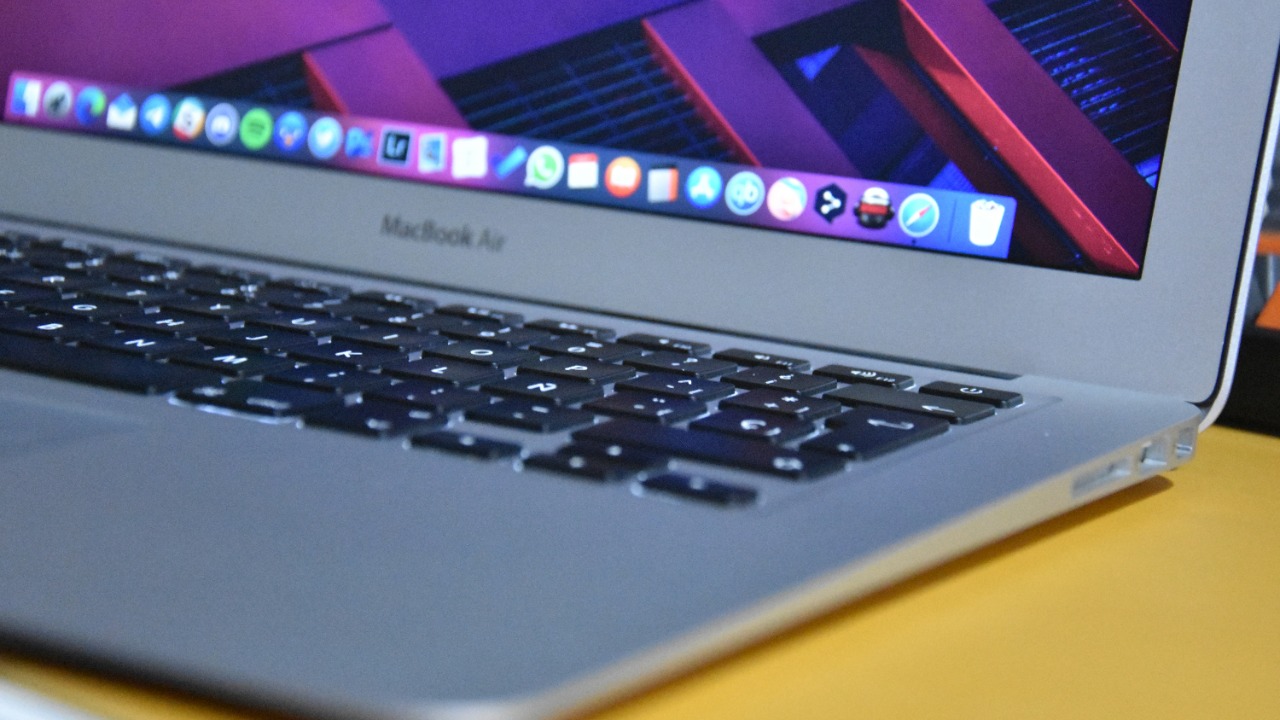

A bouncing icon in the MacBook Dock can mean several different things. Sometimes the animation simply shows that an application is opening. At other times, the app is trying to attract attention because it needs a response, has encountered an error or is waiting behind another window.
The animation is built into macOS, and it appears on MacBook Air, MacBook Pro and other Mac computers. Understanding why the icon is moving matters because the setting that stops the normal launch animation does not necessarily stop an application from bouncing when it needs urgent attention.
Apple’s current Desktop & Dock settings guide specifically describes the “Animate opening applications” setting as the control that makes icons bounce when apps are opened.
The First Type of Bounce Means an App Is Opening
The most common animation happens immediately after an application is selected. Its Dock icon rises and falls several times while macOS launches the program and prepares its windows.
This brief movement acts as visual confirmation that the click was registered. It can be useful when a large application takes several seconds to open because the bounce shows that the Mac has started processing the request.
The animation normally stops once the application finishes opening. A small dot may then appear beneath the icon, depending on the selected Dock settings, to indicate that the app is running.
This type of bounce does not usually indicate a technical problem. It is simply part of the standard macOS interface and can be disabled without affecting the application itself.
How to Stop Icons Bouncing When Apps Open
The launch animation can be disabled through System Settings.
A Mac user can open the Apple menu, select System Settings and choose Desktop & Dock from the sidebar. Inside the Dock section, the “Animate opening applications” option can be switched off.
Once disabled, applications will still open normally, but their icons will remain stationary. The change does not remove the Dock, stop app notifications or prevent open-app indicators from appearing. It only disables the bouncing animation used during application launch.
The setting can be restored at any time by returning to the same section and turning “Animate opening applications” back on. Apple lists it alongside other Dock controls for icon size, magnification, positioning, automatic hiding and open-application indicators.
The Second Type of Bounce Means an App Wants Attention
A different form of bouncing can begin after an application is already open. The icon may jump once, bounce briefly or continue moving until the application is selected.
This happens because macOS applications can request the user’s attention through Apple’s AppKit framework. An application might do this when a download finishes, a message arrives, a connection fails, a password is required or an important dialogue box is waiting for a response.
Apple defines two main attention requests. An informational request causes the Dock icon to bounce briefly. A critical request can continue bouncing until the application becomes active or cancels the request. Apple explains the difference in its developer documentation for informational attention requests and critical attention requests.
This is why some icons stop after one or two movements while others continue indefinitely. The app developer decides which type of attention request is appropriate.
Turning Off Launch Animation May Not Stop Attention Bounces
The “Animate opening applications” option controls the animation shown while an app launches. Apple does not document it as a global switch for blocking attention requests from applications.
Consequently, an icon may still bounce after that option has been disabled. In that situation, the application is probably requesting attention rather than merely opening.
The quickest way to stop it is usually to select the bouncing icon. Making the application active normally satisfies the request. A dialogue box may then appear asking for a password, permission, update confirmation, file location or another decision.
When the application contains several windows, the waiting prompt may be hidden behind the main window or displayed on another desktop Space. Mission Control can help reveal windows that are not immediately visible.
Notification Settings May Reduce Some Interruptions
An app that regularly bounces because of incoming messages or alerts may offer controls within its own preferences. Communication, collaboration and productivity applications frequently allow users to change which events produce attention-grabbing behaviour.
macOS notification controls are available through System Settings and Notifications. Each application can be selected individually, allowing notifications, sounds, icon badges, previews and alert styles to be adjusted.
Apple’s Mac notification settings guide confirms that notifications can be disabled for individual apps and that Dock badges and notification sounds can be managed separately.
Changing these options may reduce interruptions, but it is not guaranteed to eliminate every Dock bounce. Standard notifications and AppKit attention requests are related forms of communication, but an application may generate an attention request independently of its ordinary Notification Centre settings.
The application’s own settings should therefore be checked when one particular icon repeatedly demands attention.
Reduce Motion Can Make macOS Feel Less Animated
Mac users who find movement distracting can also enable the system-wide Reduce Motion accessibility feature.
The setting is located under System Settings, Accessibility and Motion. Apple says it reduces movement across parts of the interface, including animations that occur when applications open, desktops switch or Notification Centre appears.
The Apple guide to customising on-screen motion explains that the feature is intended to make interface movement more comfortable, particularly for people who experience motion sensitivity or vertigo.
Reduce Motion affects more than the Dock, so it is broader than simply disabling “Animate opening applications.” It may be preferable for someone who wants a calmer interface throughout macOS rather than only stationary Dock icons.
Continuous Bouncing Can Indicate a Hidden Problem
An icon that bounces for a long time without opening may indicate that the application is stuck, damaged or unable to complete its launch process.
The first step is to check whether macOS has opened an alert behind another window. The application may need permission to access files, a microphone, a camera or another protected resource. An app downloaded outside the Mac App Store may also be waiting for a security confirmation.
If no message is visible, the app can be closed and reopened. When it will not close normally, Force Quit can be opened from the Apple menu. Restarting the Mac may clear a temporary process that prevented the application from loading.
Apple’s current troubleshooting guide for Mac apps recommends quitting and reopening the application, restarting the Mac, installing software updates and reinstalling the app when it repeatedly stops responding or refuses to open.
An Outdated App May Bounce but Never Fully Open
Applications designed for an older version of macOS can sometimes fail after the operating system is upgraded. The icon may bounce temporarily and then disappear without displaying a usable window.
Apple notes that an app may fail to open because it is damaged, missing, restricted by an administrator or incompatible with a recently installed macOS version. Its guide for apps that cannot be opened recommends checking for an updated version or reinstalling the software.
Security protections can also block software whose developer cannot be verified or whose files appear modified. Overriding those protections should not be treated as the first solution. Apple’s Gatekeeper guidance recommends obtaining an updated version from the App Store or the developer and proceeding only when the software’s source is trusted.
The Bounce Pattern Reveals What the Mac Is Doing
A few jumps immediately after clicking an icon normally mean the application is launching. That animation can be disabled through Desktop & Dock settings.
A brief bounce from an app already running usually represents an informational attention request. Repeated bouncing generally means the app considers the issue more important and is waiting to become active.
When the icon continues bouncing but the app never opens, the movement may signal a hidden dialogue, compatibility issue, damaged installation or frozen process rather than an ordinary notification.
The most effective solution therefore depends on the reason for the animation. Disabling “Animate opening applications” removes the routine launch bounce. Selecting the app and responding to its request stops attention bouncing. Updating, restarting or reinstalling may be necessary when the icon moves but the application itself fails to load.