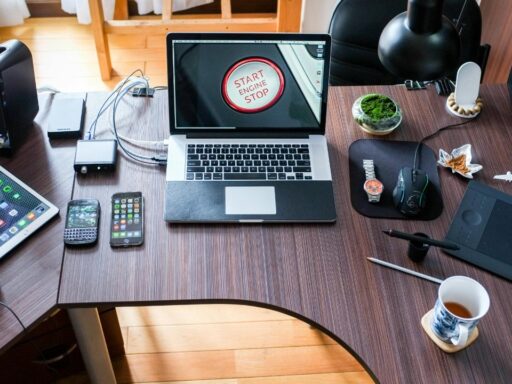

A better home office does not require a new computer, a motorized standing desk or an expensive ergonomic chair. Small upgrades can often solve the problems that affect daily work most: poor screen height, uncomfortable hand positioning, weak lighting, limited connectivity and unsupported feet.
The most worthwhile accessories in 2026 are not novelty gadgets or AI-powered desk decorations. They are simple products that improve comfort, reduce clutter or remove a repeated frustration from the working day.
Many useful options remain available for less than $50, although prices vary by brand and region. The key is choosing an upgrade that fixes a specific weakness in the existing setup rather than buying accessories simply because they look good on a desk.
1. An Adjustable Laptop Stand or Monitor Riser
A laptop placed directly on a desk usually positions the screen too low. The user may gradually bend the neck forward or look downward for hours, especially during writing, research and video calls.
An adjustable laptop stand raises the display closer to eye level. A basic monitor riser can provide the same benefit for a desktop screen while creating storage space underneath.
The Occupational Safety and Health Administration recommends positioning the top of a monitor at or slightly below eye level, with the head and neck balanced rather than tilted forward. Its computer workstation guidance also recommends keeping the monitor directly in front of the user and at a comfortable viewing distance.
A laptop stand works best when paired with a separate keyboard and mouse. Raising the entire laptop without adding external controls can force the arms and wrists into an uncomfortable position.
For a fixed monitor, a sturdy riser may be sufficient. A monitor arm offers greater adjustment and frees more desk space, but inexpensive arms should be checked carefully for supported screen weight, VESA compatibility and desk-clamp clearance.
The most useful stand is stable, adjustable and large enough to support the computer without blocking ventilation. Decorative wooden risers can look attractive, but height flexibility matters more than appearance.
A recent collection of affordable 2026 office accessories placed ergonomic laptop stands among the most practical desk upgrades available below $50.
2. A Separate Keyboard and Comfortable Mouse
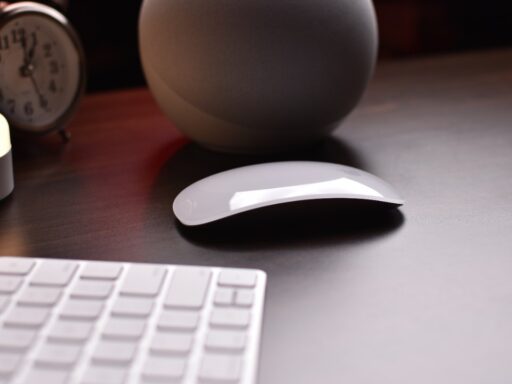
A basic external keyboard-and-mouse set can transform a laptop-based workspace.
Once the laptop is raised, the keyboard and mouse can be positioned independently. This allows the elbows to remain closer to the body and the wrists to stay in a more neutral position.
OSHA’s workstation recommendations state that the hands, wrists and forearms should remain straight and roughly parallel to the floor. The elbows should stay near the body, while the keyboard and pointing device should be placed where they can be used without excessive reaching.
A budget keyboard does not need mechanical switches, colored lighting or programmable controls to be useful. Low-profile keys, a comfortable layout and reliable wireless performance matter more for ordinary office work.
The mouse deserves similar attention. A small travel mouse may be convenient but uncomfortable during a full working day. A slightly larger model that supports the palm can feel more natural, while a vertical mouse may help some users reduce forearm rotation.
No mouse shape works perfectly for everyone. Hand size, grip style and desk space all affect comfort. A product with an easy return policy is therefore more valuable than one selected only through online reviews.
Bluetooth models reduce the need for a receiver, while USB wireless devices can provide simpler pairing. Buyers using a desktop computer should confirm that it supports Bluetooth before choosing a Bluetooth-only set.
This upgrade is especially worthwhile for people who work from a laptop several hours a day. It turns a compact mobile device into a more adjustable desktop workstation without requiring a new monitor.
3. An Adjustable LED Task Lamp
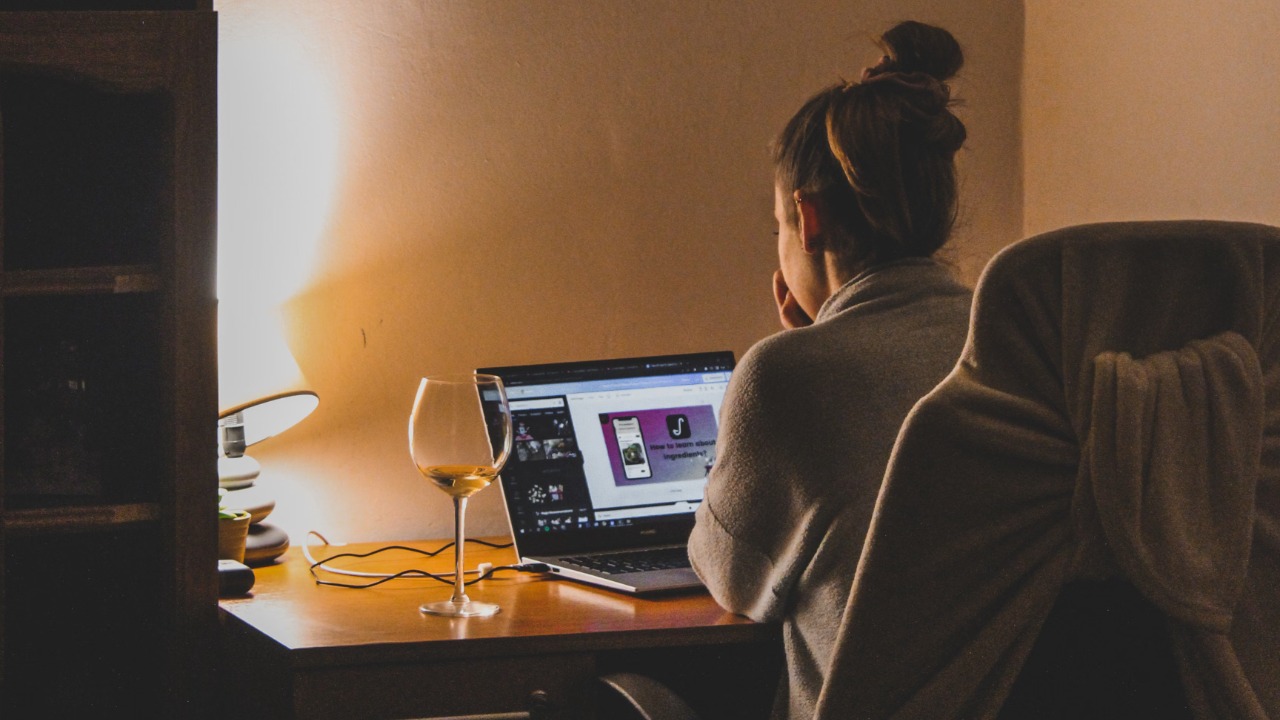
Poor office lighting can make text harder to read, create reflections on the display and encourage the user to lean toward the screen.
A small LED task lamp can improve the working area without lighting the entire room. Adjustable brightness is more important than maximum output because the right level changes between daytime, evening work and video calls.
A movable head or arm makes it easier to direct light toward documents and the keyboard while keeping glare away from the screen. OSHA notes that reflected light and badly positioned overhead lighting can contribute to eyestrain and awkward posture as users move to avoid glare.
Color-temperature adjustment is useful but not essential. Cooler white light may feel suitable for daytime tasks, while warmer settings can be more comfortable late in the evening.
A monitor light bar is another option for very small desks. It attaches above the display and directs light downward onto the working surface. Some affordable models now include adjustable brightness and color temperature for less than the price of a premium desk lamp. Recent 2026 home-office deal coverage highlighted monitor lights and compact LED lamps among useful sub-$50 upgrades.
The lamp should not shine directly into the user’s eyes or create a bright reflection in the monitor. Placing it to the side opposite the writing hand can also reduce shadows when taking notes.
A lamp with USB charging can be convenient, but its charging port should not be the main buying reason. Stable construction, smooth adjustment and flicker-free operation are more important.
4. A Properly Rated USB-C Hub or Dock
Modern laptops often provide only two or three ports. Once one is used for charging, there may be limited space for a monitor, keyboard receiver, storage drive, microphone or memory card.
A compact USB-C hub can add HDMI, USB-A, card-reader and pass-through charging connections through one cable. For hybrid workers who repeatedly connect and disconnect a laptop, this can remove a surprisingly large daily inconvenience.
The cheapest hub is not always the best choice. Buyers should confirm the supported display resolution, refresh rate, data speed and charging wattage. A hub advertised as supporting 4K may deliver only 30 Hz, which can make cursor movement and scrolling feel less smooth than a 60 Hz connection.
Power delivery also requires attention. A hub may accept a 100-watt charger but reserve part of that power for itself, leaving less for the laptop.
USB-C describes the connector rather than guaranteeing a specific speed or capability. The USB Implementers Forum’s cable and connector guidance explains that compliant USB-C-to-USB-C cables should clearly show whether they support 60 watts or 240 watts of power.
A reputable hub with clear specifications is preferable to an anonymous model claiming every possible feature at an unusually low price. Poorly documented docks can create display instability, unreliable charging or repeated device disconnections.
For someone who needs only additional USB ports, a simple hub is usually enough. A full dock is unnecessary unless the setup requires several displays, wired networking or multiple high-speed devices.
5. An Under-Desk Footrest
A footrest may be the least exciting item on the list, but it can solve a common workstation problem.
Many desks have a fixed height. To position the arms correctly at the keyboard, a shorter user may need to raise the chair until the feet no longer rest flat on the floor. This can place pressure behind the thighs and reduce lower-body support.
OSHA recommends using a footrest when the chair cannot be lowered without making the keyboard or monitor too high. Mayo Clinic gives similar advice, recommending that the feet rest flat on the floor or on a footrest while the thighs remain roughly parallel to the floor.
A basic angled platform is often enough. It should be wide enough for both feet, stable on the floor and positioned so the knees remain comfortable.
Soft foam footrests feel comfortable initially, but they can compress or slide during use. A firm adjustable platform may provide better long-term support. Some models can also be turned over and used for gentle rocking or ankle movement.
The area under the desk should remain clear enough to change position. OSHA emphasizes adequate leg clearance and avoiding workstation arrangements that force awkward postures.
A footrest cannot compensate for an unsuitable chair or desk, but it can make a fixed-height setup fit the user more effectively for a relatively small cost.
Which Upgrade Should Be Purchased First?
The best first purchase depends on the problem experienced most often.
A person who looks down at a laptop should begin with a stand, keyboard and mouse. Someone working in a dark room may gain more from a task lamp. A user constantly swapping cables should prioritize a USB-C hub, while unsupported feet point toward a footrest.
The products should work together. Raising a laptop without moving the keyboard can improve neck position while worsening wrist position. Raising the chair to fix keyboard height without supporting the feet can create another problem.
OSHA provides a free computer workstation evaluation checklist that can help identify which part of the setup needs attention first.
No inexpensive accessory can make prolonged sitting healthy on its own. Mayo Clinic notes that long periods of sitting are associated with health risks, so workers should still change position, stand and move regularly during the day.
Cheap Home Office Upgrades Can Still Be Worthwhile
The most useful home-office purchases in 2026 remain remarkably simple.
An adjustable stand improves screen positioning. A separate keyboard and mouse create more freedom for the arms and wrists. A task lamp improves local lighting. A USB-C hub reduces connection problems, and a footrest helps the workstation fit the user rather than forcing the user to fit the furniture.
These products do not need premium branding or complicated smart features. They need to be stable, properly specified and appropriate for the existing setup.
A small purchase is worthwhile when it removes a problem encountered every working day. That is a better measure of value than the number of features printed on the box.