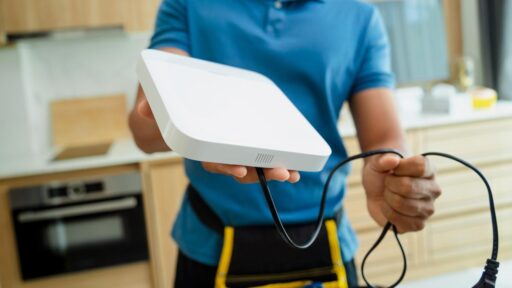
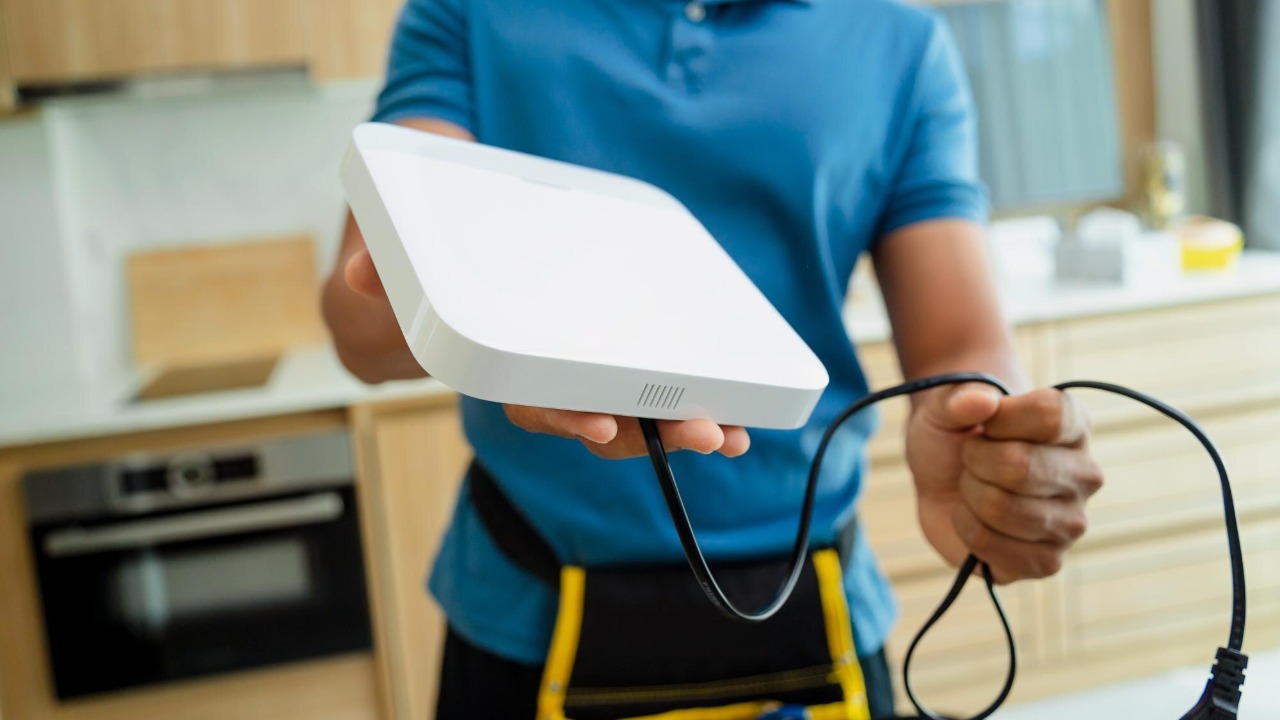

Frustrated with spotty Wi-Fi signals disrupting work, streaming, and smart home gadgets at home? Simple adjustments can transform your internet speed without calling an expensive technician, and networking experts consistently point to small, targeted changes as the fastest way to see results. Repositioning your router is one of the top tweaks to eliminate slow internet bottlenecks right away, especially in homes where the signal is fighting through walls and appliances.
Assess Your Current Setup
The first step is to assess where your router sits and what is blocking it, because improper positioning can cause up to 50% signal loss in a typical home according to guidance on how to speed up slow internet. Routers radiate signal in all directions, so tucking one behind a TV, under a desk, or next to a microwave forces the radio waves to fight through dense materials and electrical noise before they reach your laptop or smart TV. When the signal is weakened at the source, every device in the house suffers, which is why placing the router in a central, elevated, and open location can instantly stabilize video calls and reduce buffering for everyone on the network.
Once the hardware is in a better spot, I check whether the router firmware is up to date, because outdated firmware often causes compatibility issues with modern devices like smart TVs, laptops, and Wi-Fi 6 phones. The reporting on bad Wi-Fi fixes notes that manufacturers quietly ship firmware updates that patch bugs, improve security, and optimize performance for newer standards, and those changes never take effect if the router has been running untouched for years. Keeping firmware current matters for households that rely on streaming and cloud apps, since a single compatibility glitch can show up as random disconnects or throttled speeds that look like a service problem but are actually a software issue inside the router.
Optimize Router Performance
With placement and firmware handled, I move to basic performance tuning, starting with a simple restart of the router at least once a week to clear temporary glitches. Networking best practices highlighted in the guide to 10 fixes for better internet explain that consumer routers accumulate memory leaks, stale connections, and minor software errors that gradually erode available bandwidth. A scheduled reboot, either manually or through the router’s settings, forces a clean slate so the hardware can use the full capacity you pay your provider for, which is especially important in homes that run dozens of smart bulbs, cameras, and speakers around the clock.
Band selection is the next quick win, particularly in apartments or dense neighborhoods where the 2.4GHz spectrum is crowded with overlapping networks. Most dual-band routers let you choose between 2.4GHz and 5GHz, and the reporting stresses that the 5GHz band delivers faster speeds and lower interference in smaller areas, which makes it ideal for work-from-home setups in a home office or living room. I typically assign laptops, game consoles, and streaming boxes to 5GHz for maximum throughput, while leaving older IoT devices on 2.4GHz for range, because that split reduces congestion and helps critical devices maintain stable, high-quality connections during peak evening hours.
Enhance Network Security and Devices
Performance tuning only goes so far if strangers or forgotten gadgets are quietly consuming your bandwidth, so I always review security and device load. Changing the default router password is a baseline step, since the reporting on bad Wi-Fi fixes notes that factory credentials are widely known and can allow unauthorized access that hogs bandwidth and exposes private data. Once a unique, strong password is in place, I scan the connected device list in the router interface and remove anything I do not recognize, because every unauthorized phone or laptop streaming video directly reduces the speed available for legitimate work and school tasks.
Even in fully secured networks, too many legitimate devices can overwhelm limited capacity, which is why limiting connected devices during peak hours is a practical strategy. The guidance on speeding up slow internet explains that prioritizing essential devices like work computers and school Chromebooks over low-priority IoT gadgets helps keep video calls and remote learning sessions stable when everyone is online at once. I recommend pausing nonessential devices such as smart speakers, streaming sticks in unused rooms, or background cloud backups during busy periods, since that targeted triage can prevent the kind of congestion that turns a 4K movie night or a critical Zoom meeting into a pixelated mess.
Advanced Fixes for Persistent Issues
When basic tweaks are not enough, especially in larger homes, more advanced hardware changes can deliver the reliability that modern households expect. The reporting on bad Wi-Fi upgrades points to mesh Wi-Fi systems as a strong option once a home exceeds 2,000 square feet, because a single router often cannot push a strong signal through multiple rooms and floors. Mesh kits use several coordinated nodes to blanket the space in a single network, so a phone or laptop can roam from the living room to an upstairs office without dropping the connection, which is crucial for hybrid workers and students who move around during long calls.
For stationary devices that demand the highest possible stability, such as gaming PCs, desktop workstations, or smart TVs, I often bypass Wi-Fi entirely and use wired Ethernet. The expert advice in the slow internet guides emphasizes that a direct Ethernet run from the router or a nearby switch eliminates wireless interference, which removes variables like thick walls, neighboring networks, and microwave ovens from the equation. That wired backbone not only improves performance for those key devices, it also lightens the load on the wireless network, leaving more capacity for phones, tablets, and laptops that truly need Wi-Fi to function.