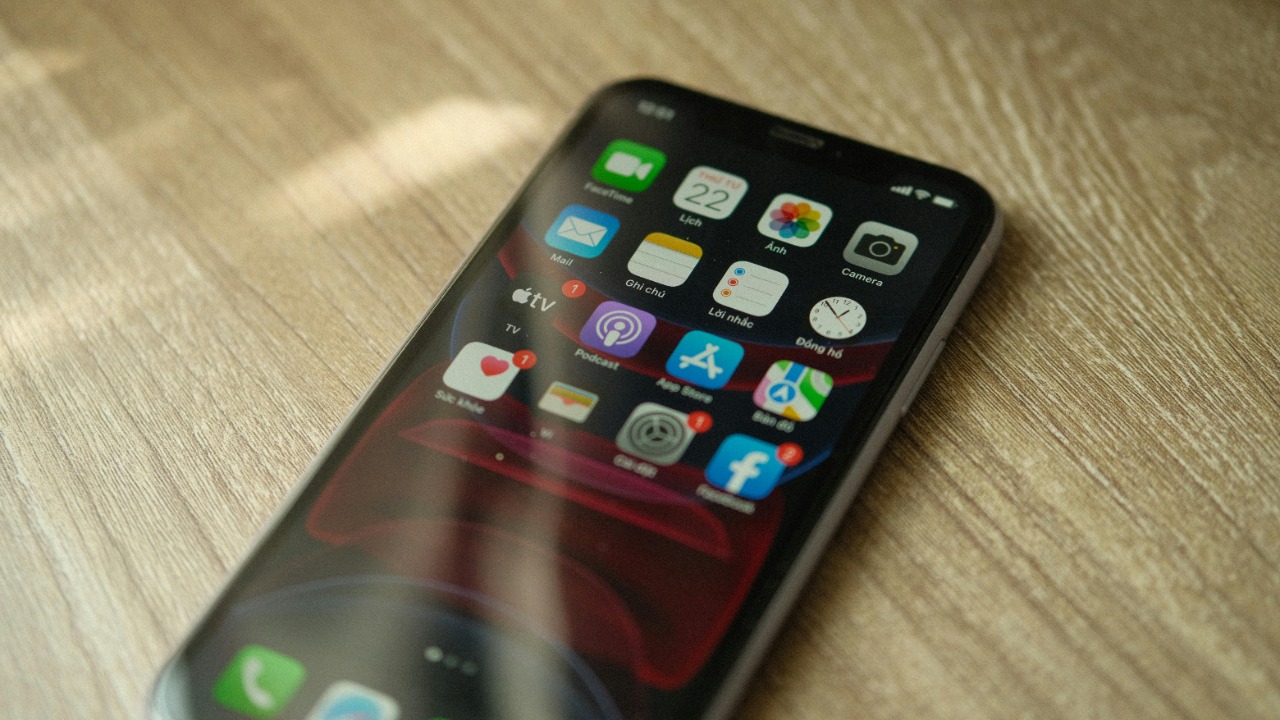

iPhone owners who are tired of mystery calls interrupting work, driving, or downtime can quietly put Siri to work as a screener. By turning on a built-in feature in recent versions of iOS, I can have my phone ask callers who they are and announce the name or number before I decide whether to pick up. The same tool is tuned for accessibility and works cleanly with AirPods and CarPlay, so I can stay hands-free and still know exactly who is trying to reach me.
Why Announce Calls Matters for Privacy
Robocalls and spam campaigns have turned the simple act of answering the phone into a privacy risk, which is why Apple’s Announce Calls feature has become a quiet but important filter. When I enable it, Siri speaks the caller’s name if it is stored in Contacts or reads out the phone number if it is not, so I can screen calls without ever touching the device. The practical effect is that I can ignore suspicious numbers, pick up only when the caller sounds legitimate, and avoid revealing that my line is active to automated dialers that thrive on answered calls.
Apple originally framed Announce Calls as an accessibility tool, and that context still shapes how it protects privacy. The feature is part of a broader set of iOS updates that let me choose how I receive information, whether through spoken alerts, haptic feedback, or a combination that suits different hearing or vision needs. In everyday use, the ability to have Siri speak caller details before the ringtone fully breaks through, as described in the how-to guide, means I can keep my phone in a pocket while driving, working at a laptop, or cooking and still make fast, informed decisions about whether a call is worth my attention.
Step-by-Step Setup in iOS Settings
Turning on Announce Calls starts in the Phone section of the Settings app, where I can fine-tune how aggressively Siri steps in. After opening Settings and tapping Phone, I select Announce Calls, then choose between options such as Always, Headphones & Car, or Headphones Only, depending on how often I want announcements to play. Picking Always means every incoming call will be spoken aloud, while Headphones & Car limits the behavior to situations where I am connected to accessories, which is useful if I prefer more discretion when the iPhone is on a desk or in a shared space.
Within the same menu, I can make sure that caller ID is announced even when the number is not saved in Contacts, which is critical for screening unknown callers. Siri will read out the digits clearly, so I can recognize patterns like repeated spam attempts or local numbers that might be legitimate, and the MacRumors tutorial walks through checking that this behavior matches what I expect with a few test calls from saved and unsaved contacts. For anyone who relies on quick visual confirmation, pairing these spoken alerts with the on-screen caller ID gives a second layer of verification that reduces the odds of being tricked by spoofed numbers or misleading labels.
Integrating with Accessories and CarPlay
Announce Calls becomes far more powerful when it is paired with accessories, especially Apple’s own headphones. When I use AirPods, whether it is a set of AirPods Pro on a noisy subway or standard AirPods while running, Siri’s voice comes through the earbuds to tell me who is calling without forcing me to pull out the phone or glance at a watch. That hands-free clarity is not just convenient, it also reduces the temptation to fumble with a device in situations where distraction can be risky, such as crossing streets or cycling through traffic.
In the car, the feature ties into CarPlay so that caller information is spoken over the vehicle’s speakers, keeping my eyes on the road instead of the dashboard screen. Once I have selected Headphones & Car or Always in Settings, connecting an iPhone to a CarPlay system in a model like a Honda Civic or Ford F-150 prompts Siri to announce incoming calls automatically, which is especially valuable on highways where a split-second glance away from traffic can matter. If announcements do not trigger as expected, the same source instructions recommend checking that CarPlay is active, that the iPhone is not muted, and that the chosen Announce Calls mode actually includes car connections, all of which can restore the safety benefits of audible caller ID.
Troubleshooting Common Issues
When Announce Calls seems to stop working, the cause is often a simple conflict with other iOS features rather than a deeper bug. If Focus or Do Not Disturb is enabled, for example, the system may silence notifications and prevent Siri from speaking caller details, so I need to confirm that the active Focus mode allows calls from the people I care about. Low Power Mode can also affect background behavior, so turning it off and raising the volume with the side buttons are quick checks that often bring announcements back, especially if the phone had been close to silent in a meeting or theater.
Keeping iOS up to date is another practical safeguard, because Apple continues to refine how Siri handles voice recognition and audio output in noisy environments. Installing the latest version can improve how clearly caller names are pronounced through AirPods or car speakers, which matters when I am trying to distinguish between similar-sounding contacts while driving or working in a loud office. If I need temporary quiet, the guide details how to switch Announce Calls to Headphones Only or turn it off entirely for specific situations, such as a silent presentation or court appearance, without losing the broader benefit of having Siri act as a gatekeeper the rest of the day.