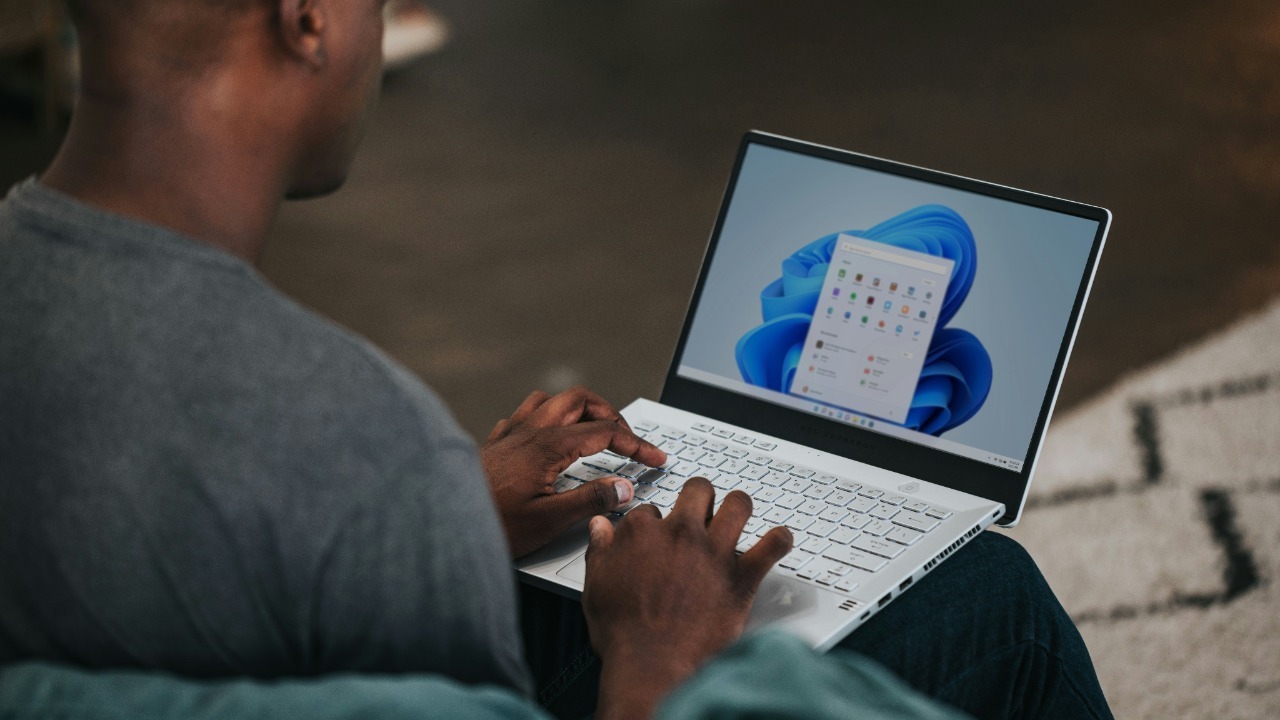

Microsoft’s December update for Windows 11 focuses on 16 genuinely useful changes that respond directly to user feedback instead of chasing flashy experiments. The new release concentrates on practical upgrades to productivity tools, security, and everyday interface behavior, making the system feel more coherent than the October and November builds. By tightening core experiences rather than scattering minor tweaks across the OS, the update aims to make Windows 11 more intuitive for both casual users and power users who live in the desktop all day.
Interface and Navigation Upgrades
The most visible improvements arrive in the shell, where taskbar and Start menu refinements help reduce clutter and make navigation more predictable. Snap layouts now surface more intelligently when users drag windows toward the edges of the screen, so arranging a browser, Excel workbook, and Teams chat side by side takes fewer clicks than in earlier 2023 updates. By tightening how pinned apps, recent documents, and power controls are grouped, the Start menu also exposes common actions faster, which matters in offices where seconds shaved off repetitive tasks add up across hundreds of employees.
File management gets a similar quality-of-life boost through File Explorer tabs and more consistent contextual menus. Instead of juggling multiple Explorer windows to compare folders on different drives, users can keep several locations open in a single window, moving files between tabs the way they already do in browsers like Microsoft Edge or Google Chrome. The right-click menus now surface key commands such as copy, paste, and properties in a more predictable order than in previous versions, which reduces the friction that power users felt when handling large photo libraries, code repositories, or shared project folders on networked storage.
Productivity and App Integration Improvements
On the productivity side, the standout change is the updated Snipping Tool, which now records video clips in addition to static screenshots. Instead of installing third-party utilities just to capture a quick walkthrough of a bug or a how-to for a colleague, users can start a screen recording directly from the built-in tool, trim the result, and share it through Outlook or OneDrive. That shift narrows the gap with popular utilities like ShareX and OBS Studio for everyday tasks, and it gives IT departments a simpler default option that is easier to support across large fleets of laptops.
Communication workflows also tighten as Microsoft Teams becomes more deeply integrated into the taskbar, with chat access and notifications embedded directly into the system tray. Rather than juggling separate pop-up windows or relying on background toasts that are easy to miss, users can glance at the taskbar to see unread messages and join calls with a single click. For organizations that have standardized on Teams for meetings and internal messaging, this reduces context switching between apps and helps remote workers stay responsive without leaving their primary workspace.
Security and Performance Tweaks
Security receives a meaningful upgrade through enhanced Windows Hello authentication, which now delivers faster facial recognition by leaning on hardware optimizations that were not present in the September update. Users with compatible cameras can sit down, open a laptop lid, and reach the desktop more quickly, which encourages stronger authentication practices because the secure option no longer feels slower than typing a PIN. For enterprises that manage thousands of devices, shaving even a second or two off each login can translate into measurable productivity gains while keeping biometric security front and center.
Under the hood, kernel-level security patches in the December release target recent vulnerabilities more aggressively than earlier cumulative updates, improving threat detection for environments that face constant probing from malware and targeted attacks. These changes matter most to enterprise and government deployments that rely on Windows 11 as a frontline defense layer, since kernel exploits can bypass traditional antivirus tools and endpoint agents. By tightening this foundation, Microsoft gives security teams a stronger baseline before they layer on tools like Microsoft Defender for Endpoint or third-party EDR platforms.
Accessibility and Customization Features
Accessibility advances with new voice access expansions that extend hands-free control beyond the voice typing features seen in prior builds. Users can now issue more granular commands to open apps, navigate menus, and edit text, which is especially important for people with mobility challenges who depend on speech to operate their PCs. By improving dictation accuracy and command recognition, the update reduces the frustration that often pushes users back to physical keyboards, and it signals that accessibility is being treated as a core system capability rather than an optional add-on.
Customization also improves through deeper theme and color scheme controls in the personalization settings, including stronger contrast options that make interface elements easier to distinguish. Users who struggle with low-contrast text or subtle accent colors can now tune the desktop to their specific needs instead of relying on one-size-fits-all presets. At the same time, refinements to the input method editor for multilingual users address inconsistencies that previously affected non-English locales, so switching between languages in apps like Word, WhatsApp Desktop, or Slack feels smoother and less error prone for bilingual workers and students.